How to Add Data Sources through Source Flow
Once the data model is built under UNS, you need to connect real data to the model for subsequent processing and use.
Adding Data Flow Manually
- Log in to Tier0, select Flows.
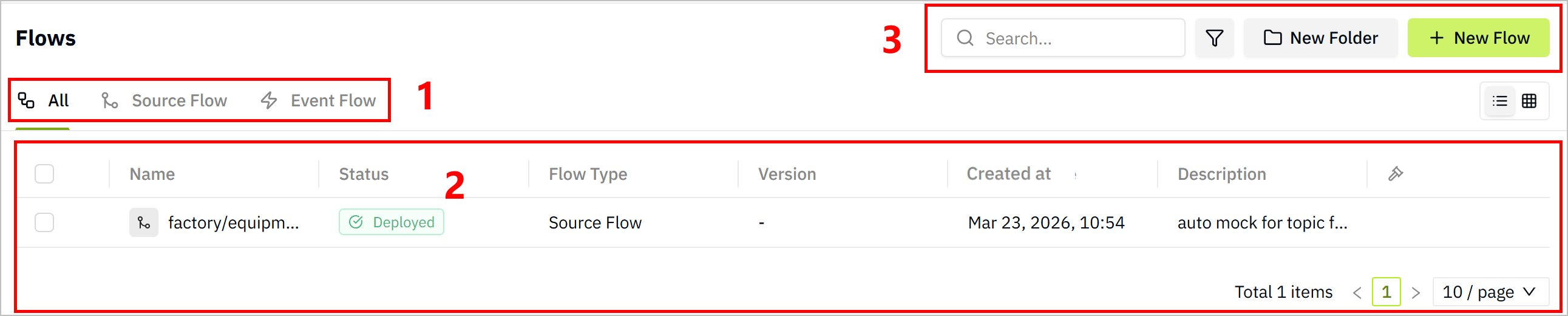
| Index | Item | Description |
|---|---|---|
| 1 | Flow Display | Select to view all flows or only one category. |
| 2 | Flow List | Displays flow information. Click the flow name to start editing the data flow. |
| 3 | Search/Filter | Search for/filter existing data flows. |
| New Folder | Add folders to categorize data flows. | |
| New Flow | Add new data flows. |
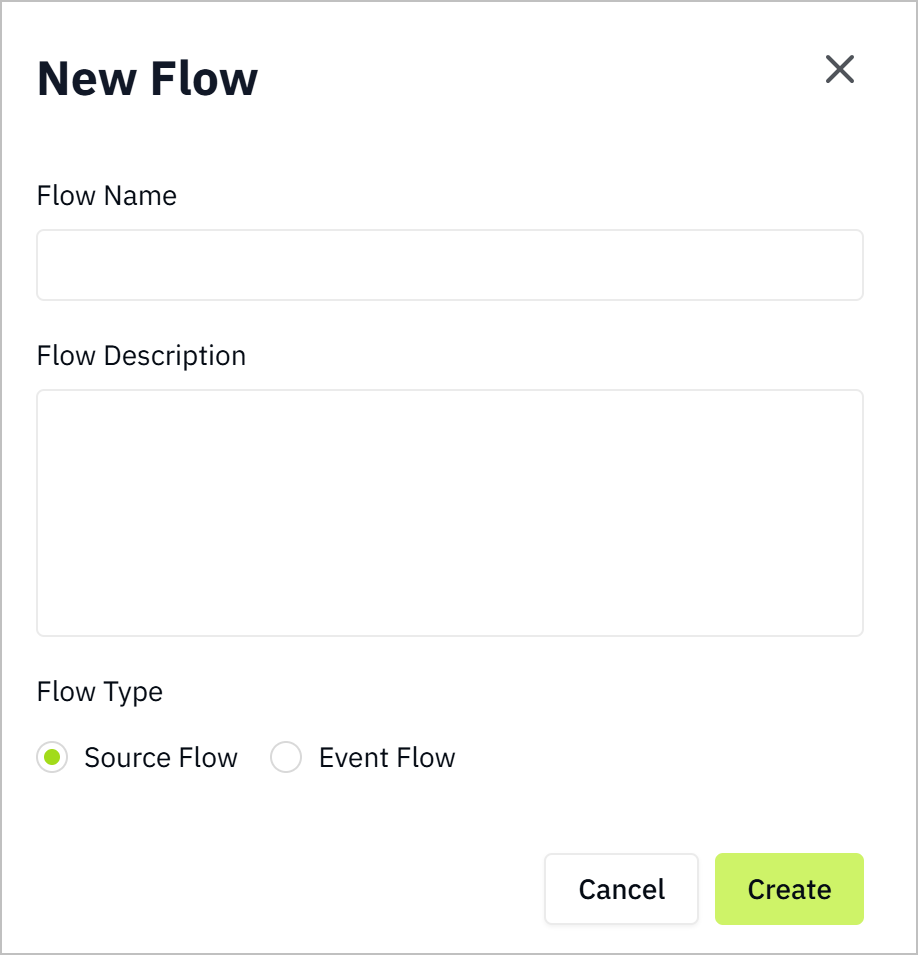
- Click New Flow, enter a name, select Source Flow as Flow Type, and click Save.
- Source Flow: Used to collect data from data sources and send it to UNS.
- Event Flow: Used to process data from UNS.
- Click the flow you just added, and drag in nodes according to your data source type (e.g.
modbus). - Drag in an
mqtt outnode, and finish its configurations.
Add the internal broker via
emqx:1883.
Set its subscription topic to the data model in Namespace.
For example, the data model structure is
factory/equipment/cnc, the topic will befactory/equipment/cnc.
- Click Deploy at the upper-right corner, trigger the flow and the data will be sent to corresponding model under Namespace.
tip
You can save the the flow as different versions by clicking Save Version, and switch to the previous version when needed.
Configuring Data Source through Generated Flow
note
Data flow will only be automatically generated when you select Use mock data while creating topics.
- Log in to Tier0, go to Flows > Source Flow.
- Find the flow with the same name as the created topic, and click to edit it.
- Change the data source of the generated flow.
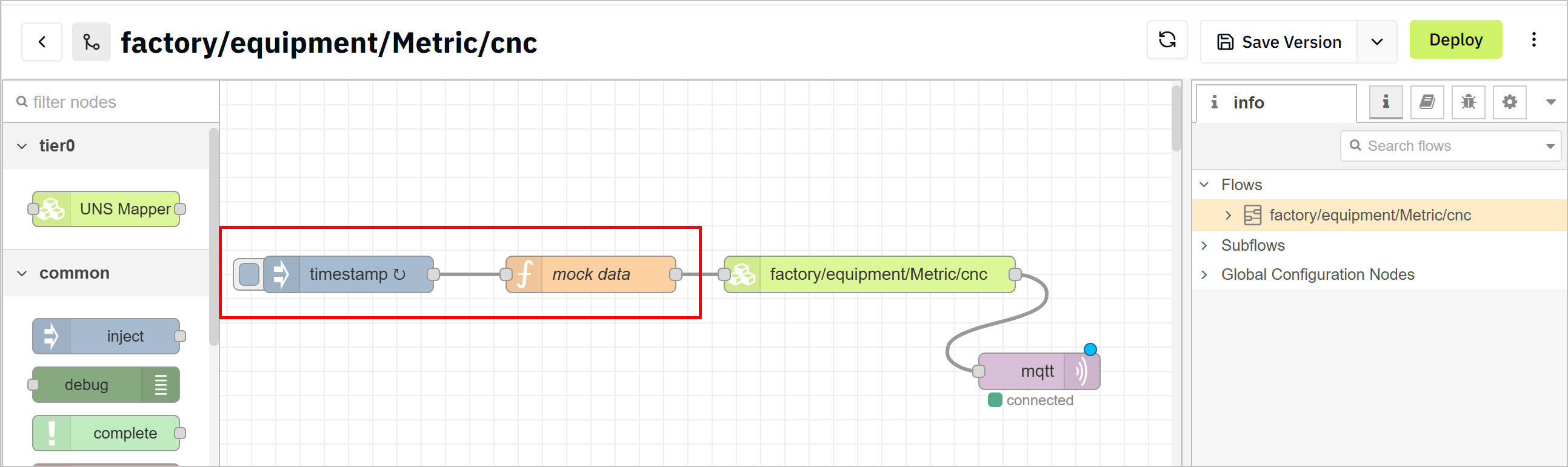
- Delete the mock data node and connect the source node to the rest of the flow.
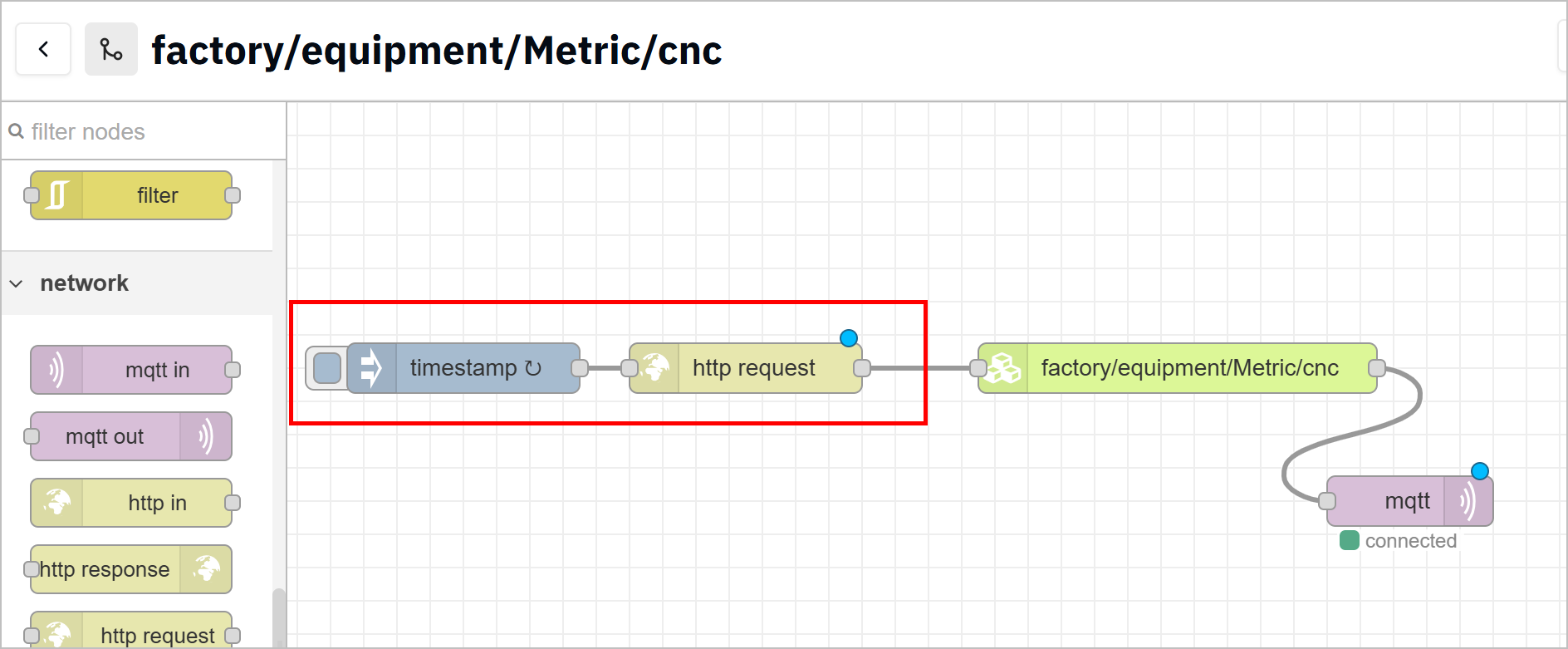
- Click Deploy at the upper-right corner, and then trigger the flow.
- Go back to UNS, check whether the data is received.