Login
- Access Tier0 with the given domain in a browser.
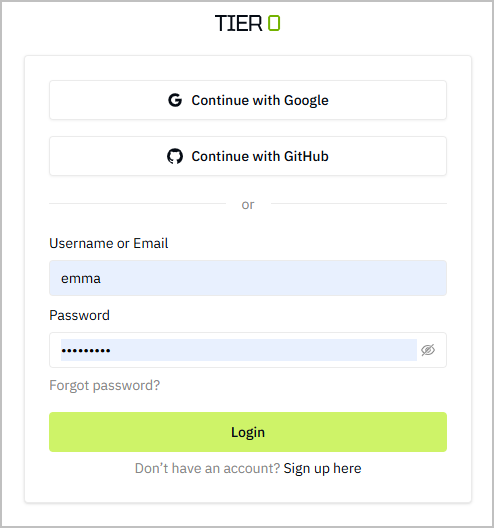
- On the login page, click Sign up here.
tip
You can also use either Google or Github account to quickly sign in.
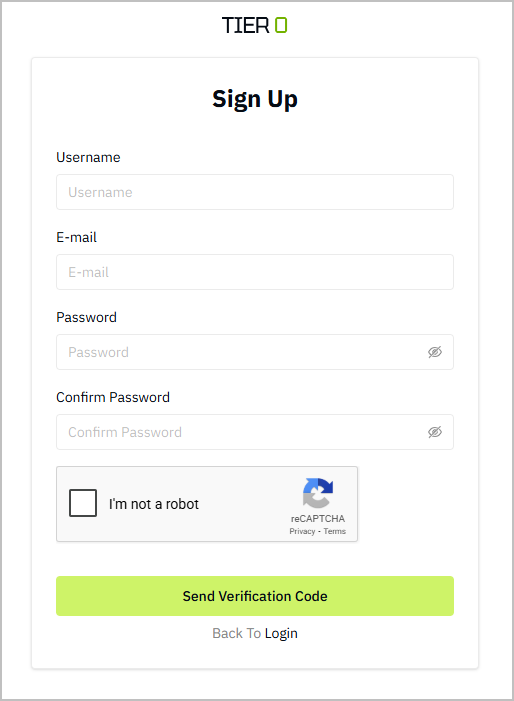
- Fill in the required information, receive the verification code in your email and go to the login page.
- Enter the registered username and password.
-
Click Login.
-
Enter the workspace.
-
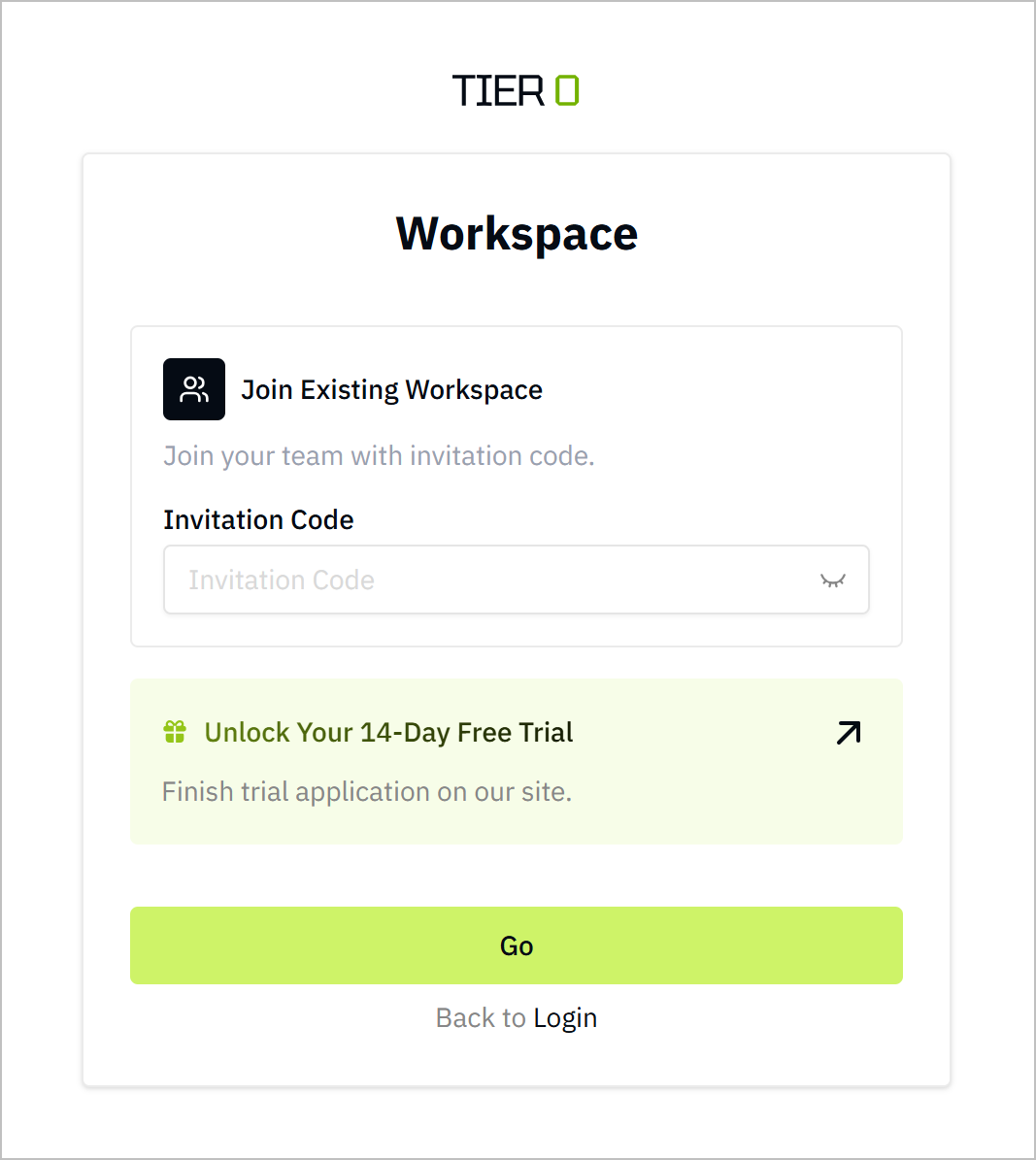
Enter the invitation code to an existing workspace, and then click Go.
-
Click Unlock Your 14-Day Free Trial to apply for a new workspace.
-
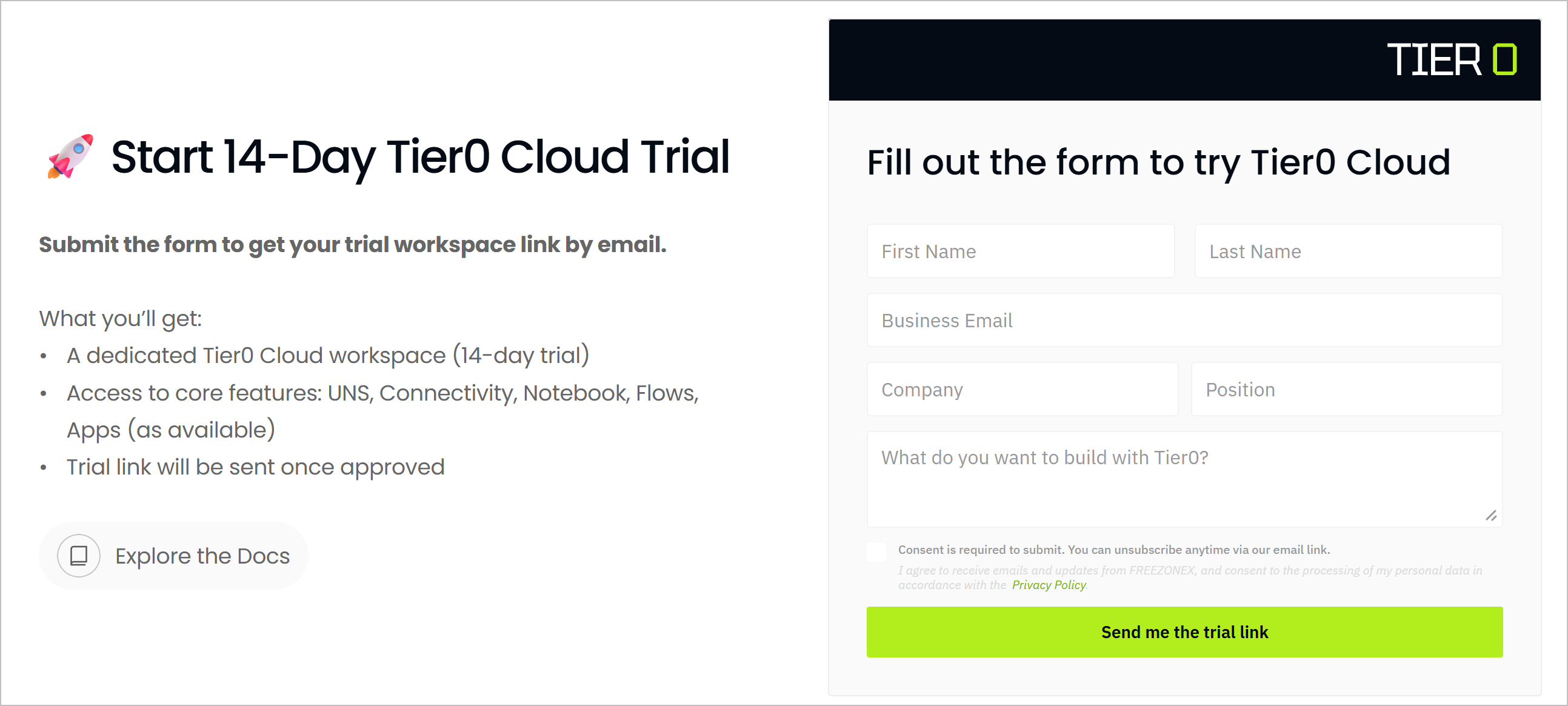
Enter the required information on the official site, and click Send me the trial link.
-
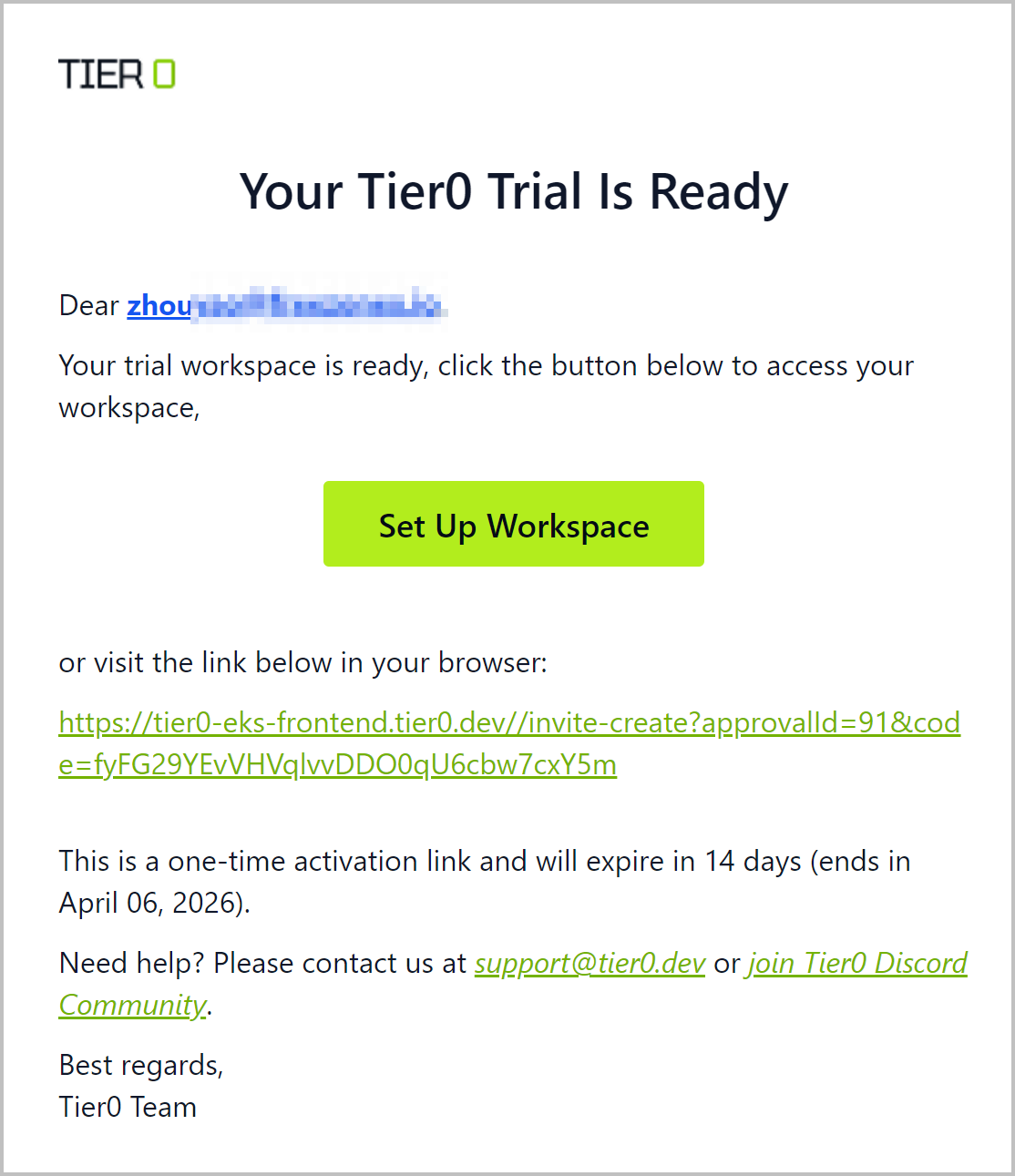
Click Set Up Workspace on the received approval email.
-
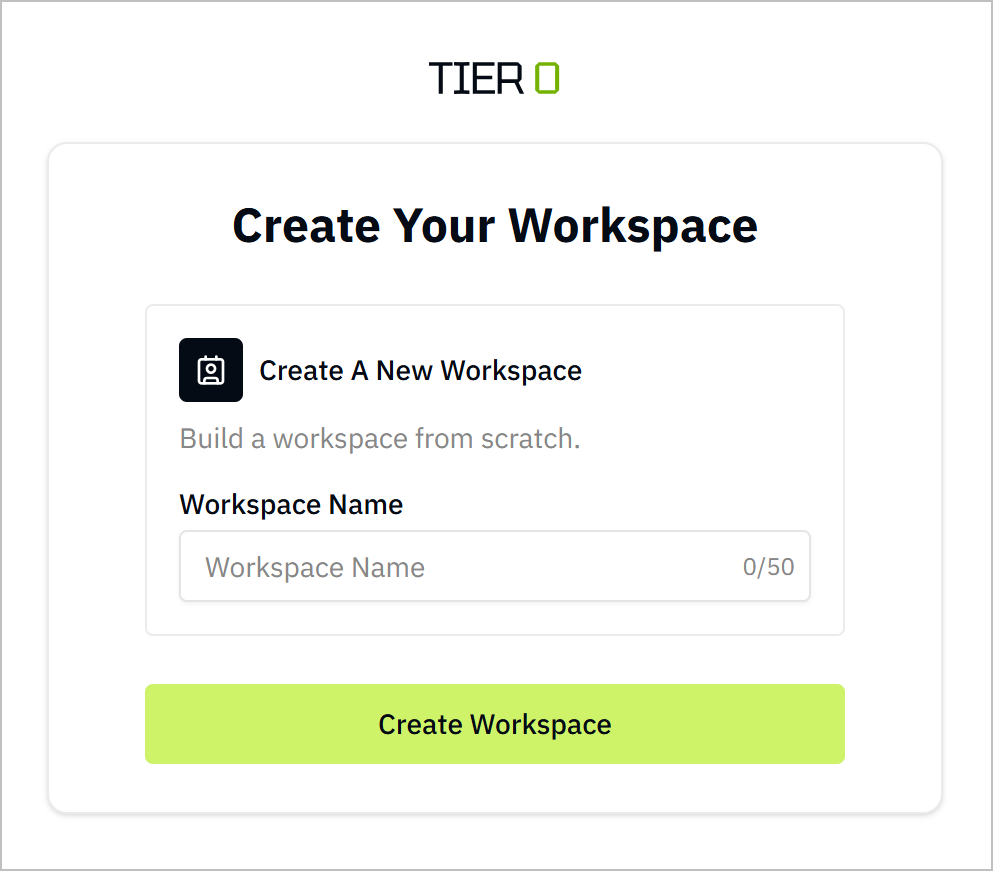
Set the workspace name and click Create Workspace.
-
-
-
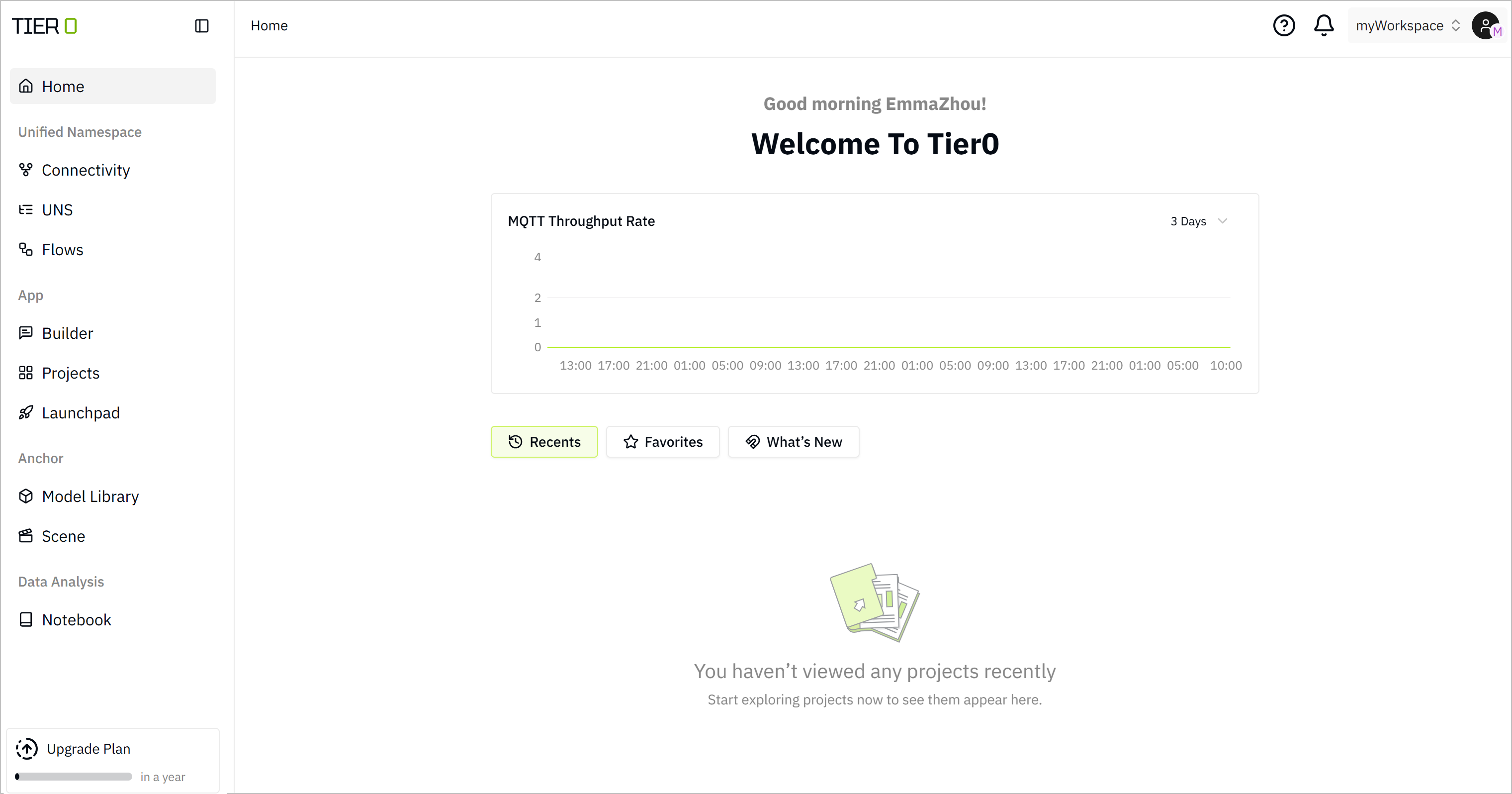
Wait for the workspace to be ready, you can start exploring the platform.
important headsup
- Members of a workspace can only see Launchpad and use the applications inside.
- Admins of the workspace can see all features, but cannot delete the workspace.
- Owner of the workspace has all permissions, including deleting the workspace.