Workspace Management
Data on the platform is managed independently by workspaces. Each workspace has its own UNS models, flows, data source connections, and other resources.
Inviting Users to Workspaces
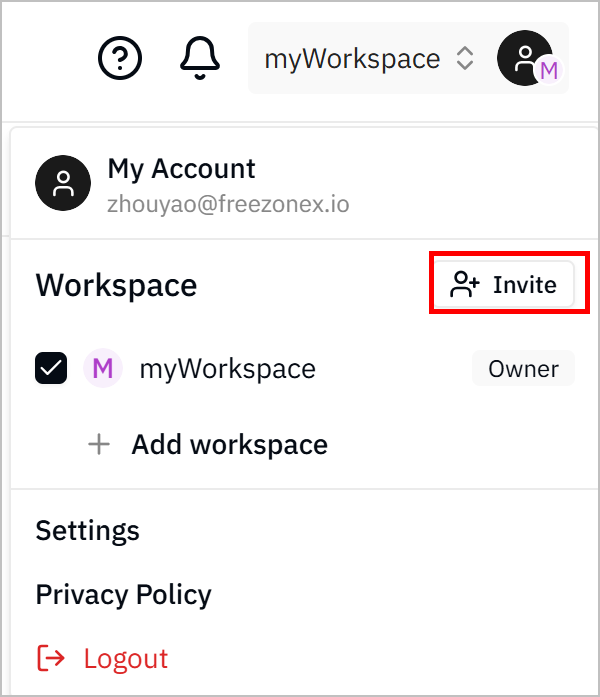
- Log in to Tier0, click on your avatar and then click Invite.
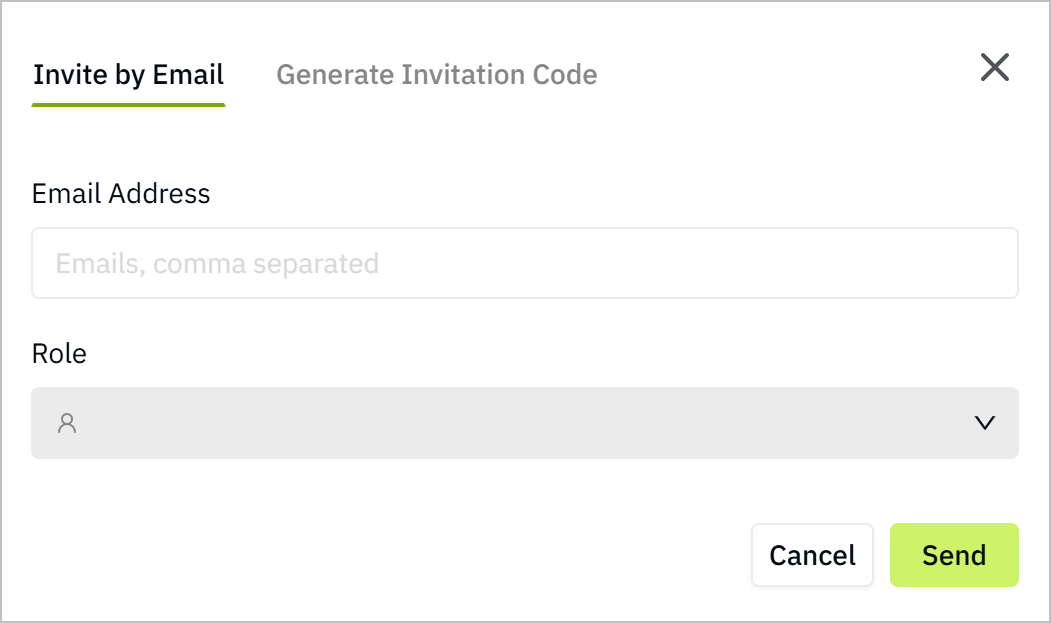
- Enter the email addresses of users to invite, set their roles, and then click Send.
- Admin: Can manage workspace settings and members.
- Member: Can use workspace.
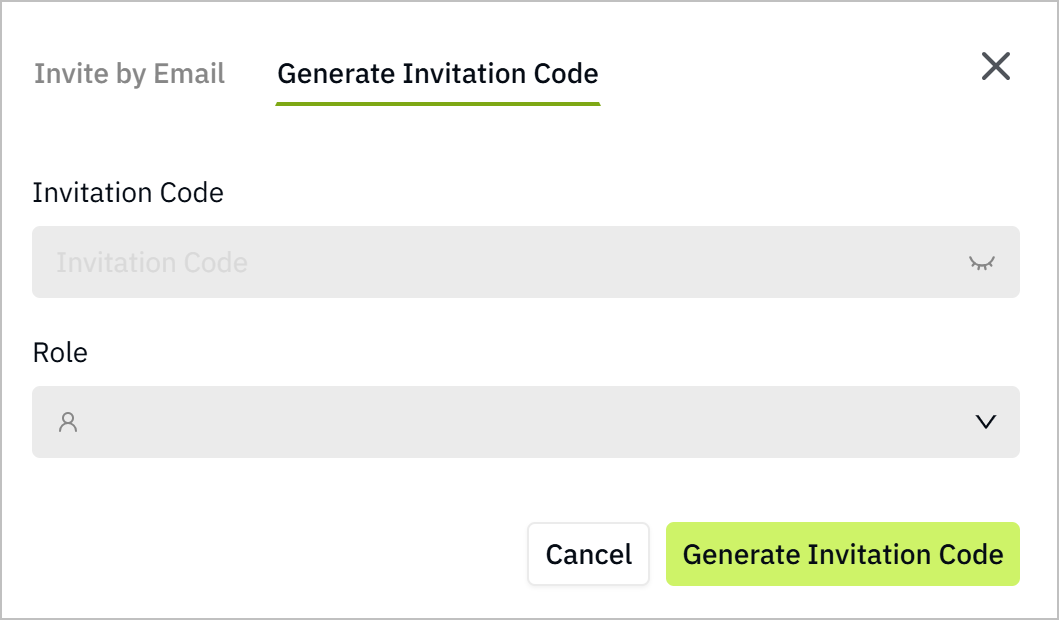
- (Optional) Click Generate Invitation Code, and send it to users to join the workspace directly.
Adding Workspace
- Log in to Tier0, click on your avatar and then click Add workspace.
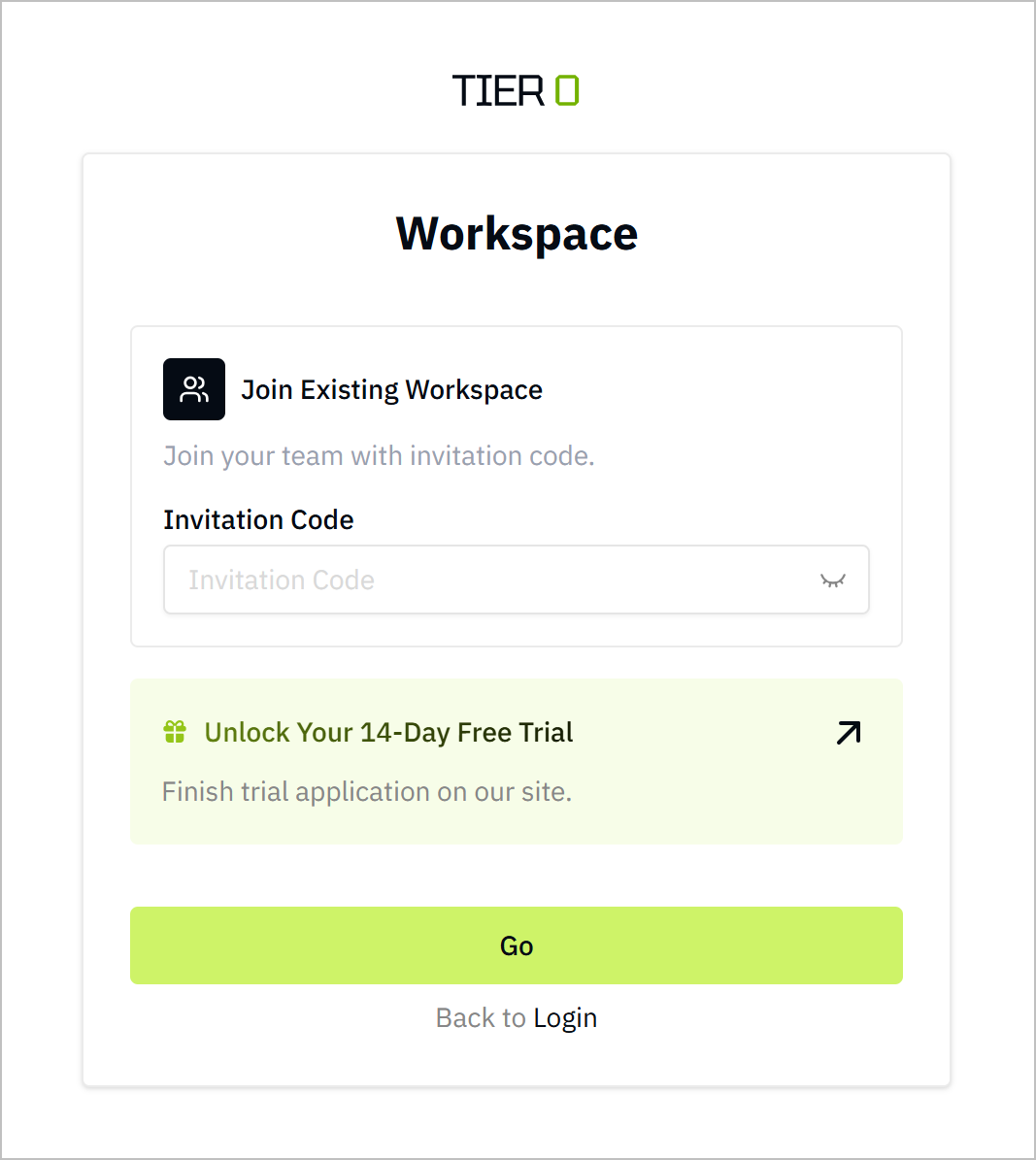
- Either enter the invitation code to join a workspace or to apply for a new personal or enterprise workspace.
Configuring Workspace
- Log in to Tier0, click on your avatar, and then click Settings.
- Under Workspace, click General, and then configure the workspace as needed.
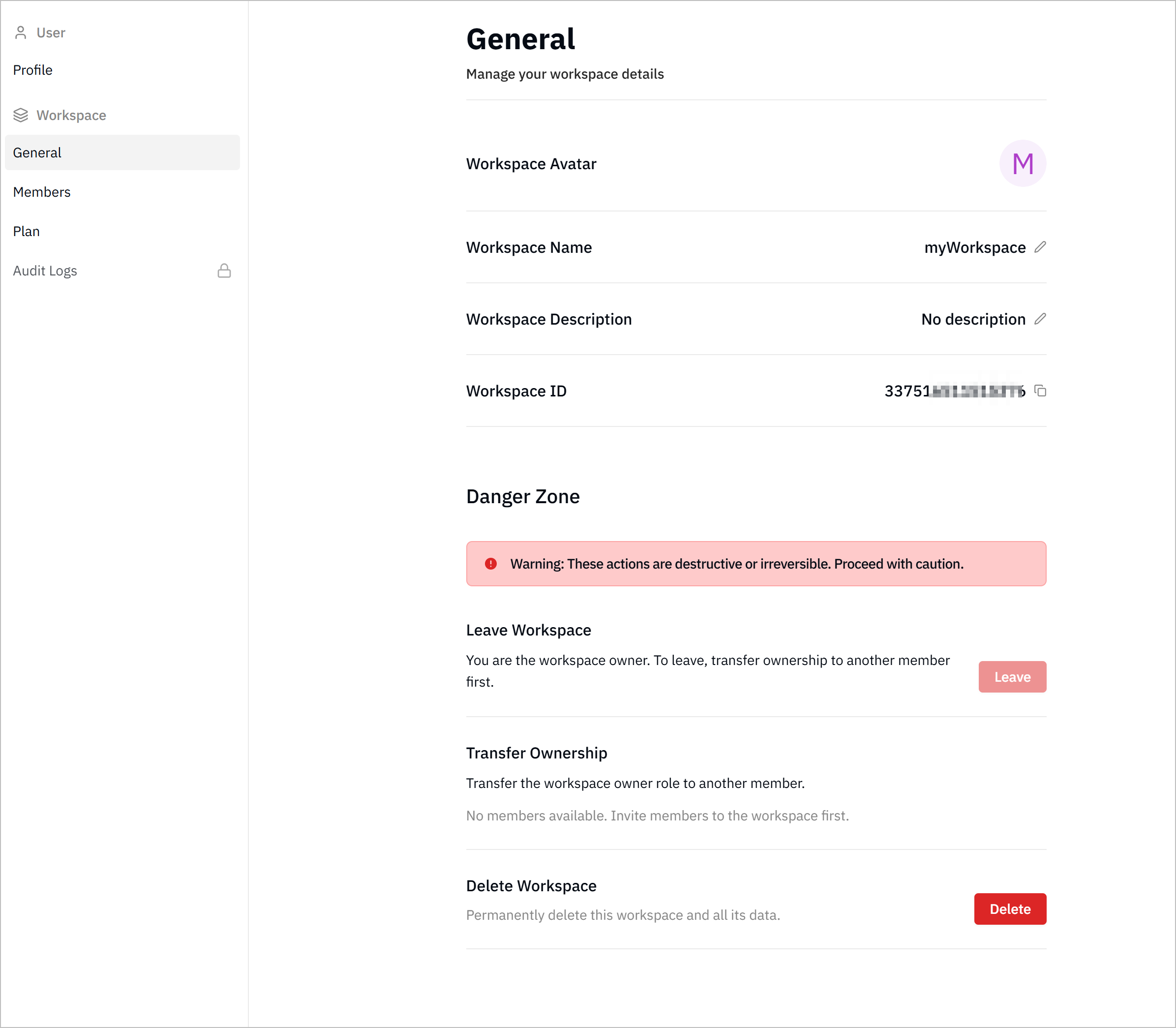
- Change workspace avatar/name/description: Click corresponding fields to change workspace information.
- Leave workspace: Click Leave next to Leave Workspace to leave the workspace permanently.
- Transfer ownership: Click Transfer next to Transfer Ownership, select a member to transfer workspace ownership to.
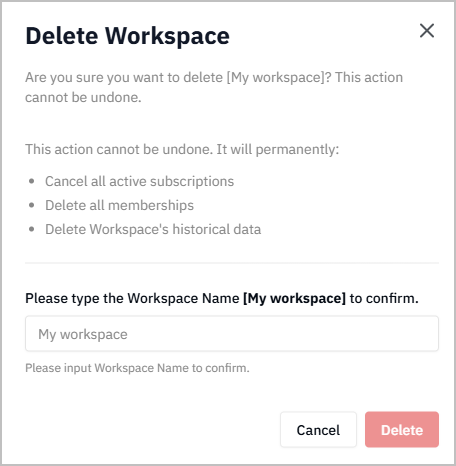
- Delete workspace: Click Delete next to Delete Workspace to delete the workspace permanently.
info
- Only admins and members can leave the workspace. Owners need to transfer ownership to other members before leaving.
- Only owners can transfer ownership/delete the workspace.
Managing Workspace Members
- Log in to Tier0, click on your avatar, and then click Settings.
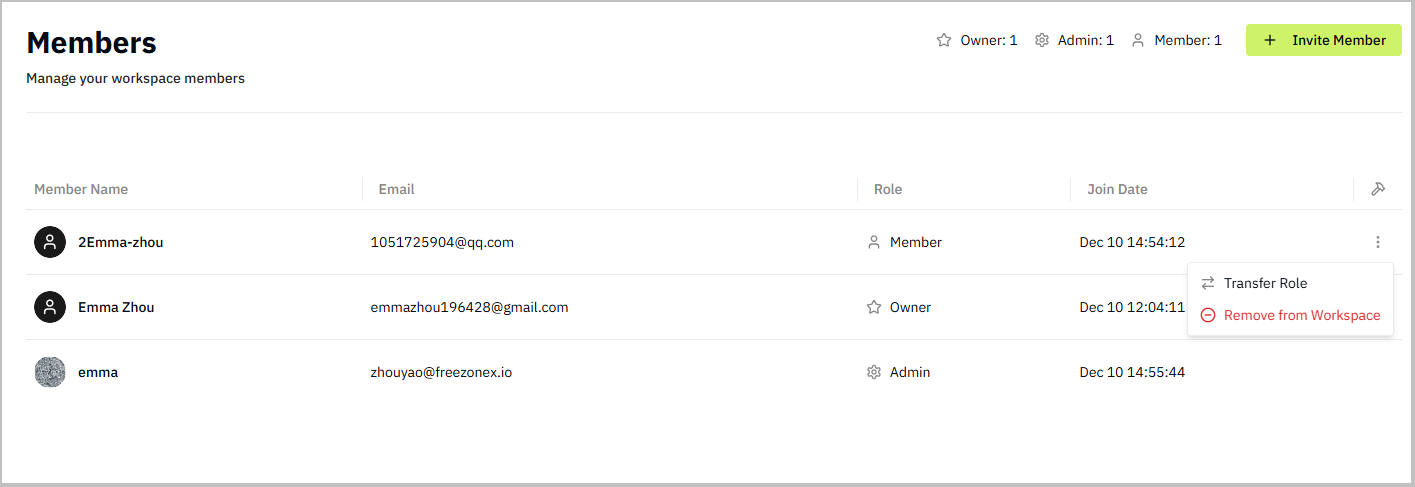
- Under Workspace, click Members, and then manage workspace members, including invite new members, delete current members, change roles and more.
info
Same roles cannot act on each other. For example, an admin cannot change the role of another admin, but can change the role of a member.
Managing Workspace Plans
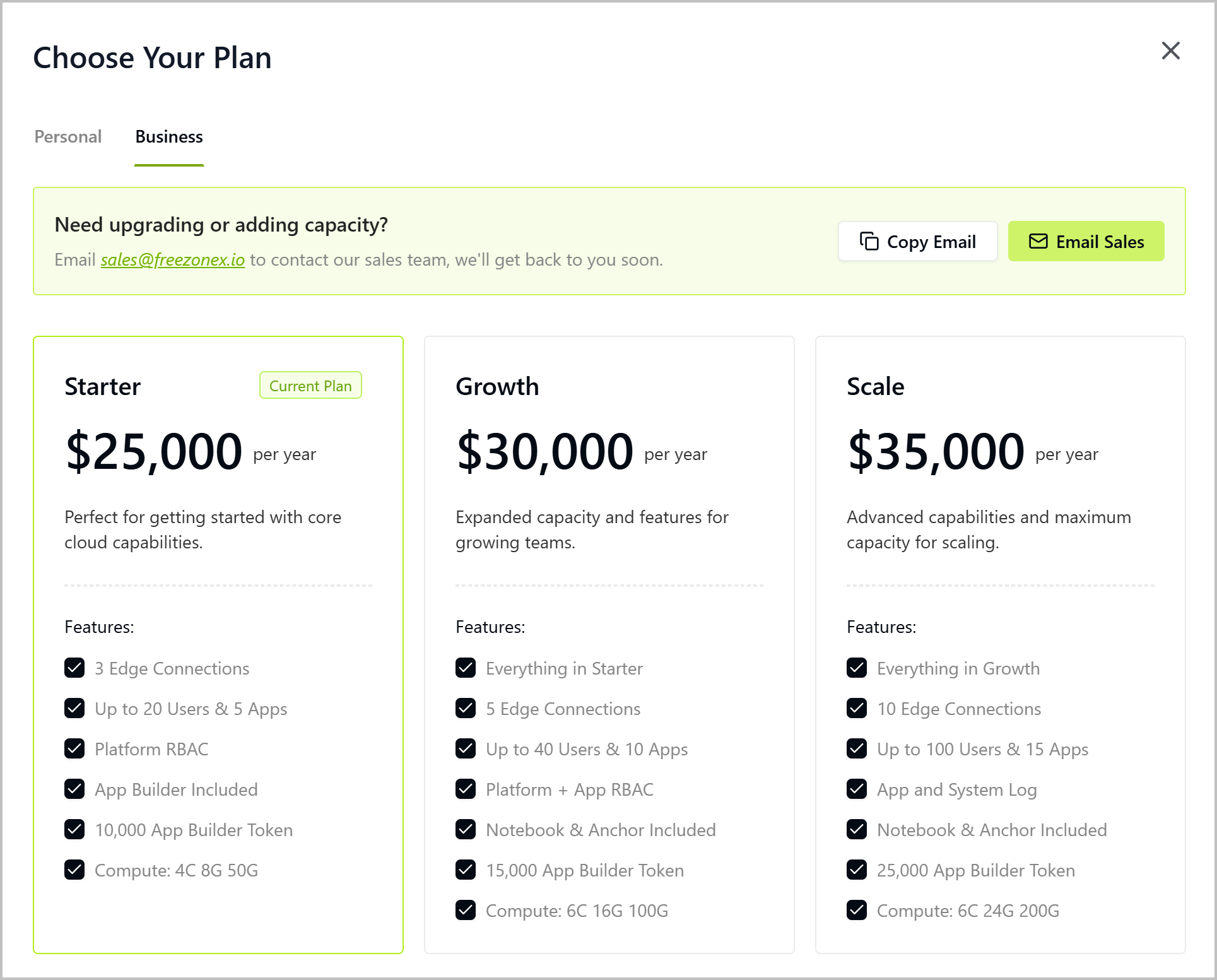
Tier0 offers different billing plans for personal and enterprise users. You can view the details of each plan and upgrade your plan as needed.
info
Only the workspace owner can upgrade the plan.
- Log in to Tier0, click your avatar at the upper-right corner, and then click Settings.
- Click Plan under Workspace, and then click Upgrade Plan.
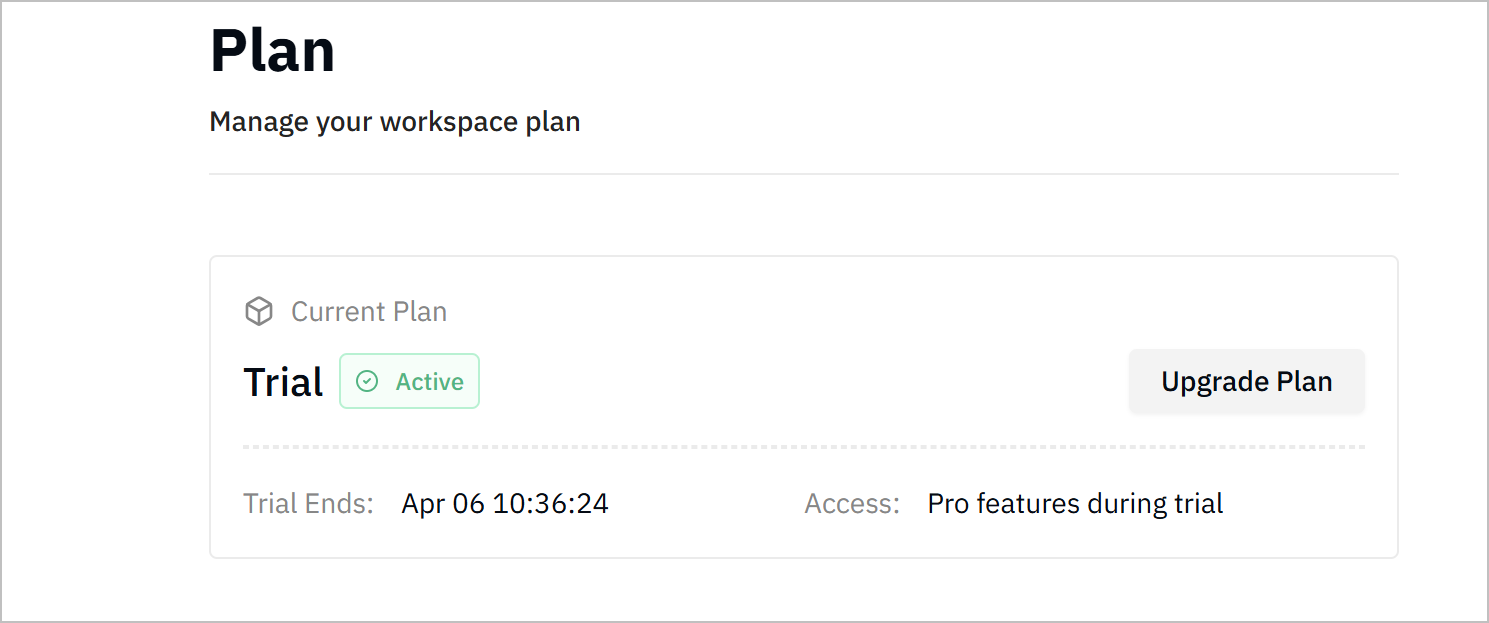
- Select Personal, and view the details of each plan, click Email Sales and get in touch with our sales team.
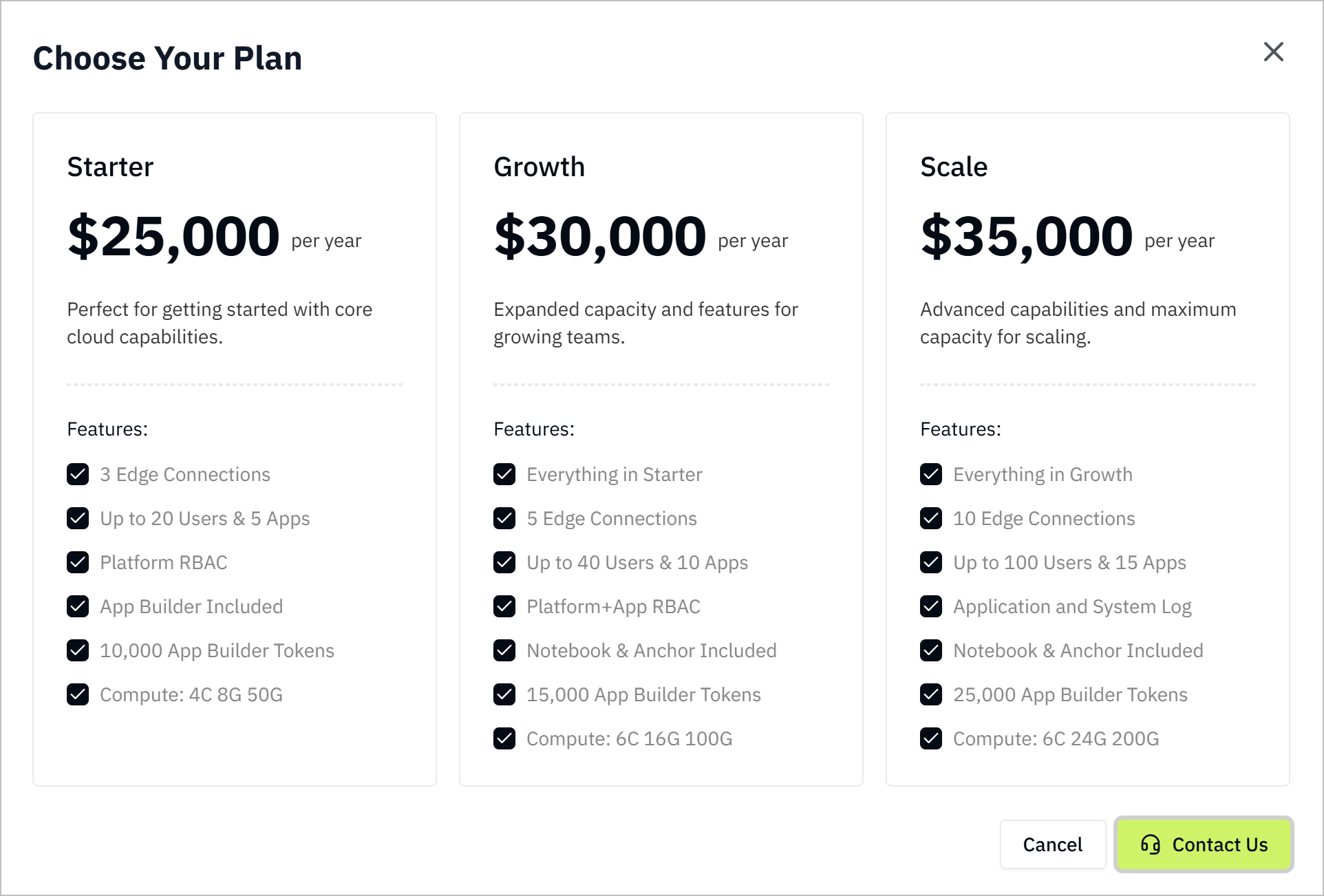
- (optional) For business users, select Business to view the details of each plan, click Email Sales and proceed with our sales team.
Controlling Workspace Data Access
info
Authentication keys are for API access to the data in your workspace. Check out the API documentation for more details.
You can use API to get data in your workspace with authentication keys.
- Log in to Tier0, click on your avatar, and then click Settings.
- Under Workspace, click API Keys, and select a type of API key to create.
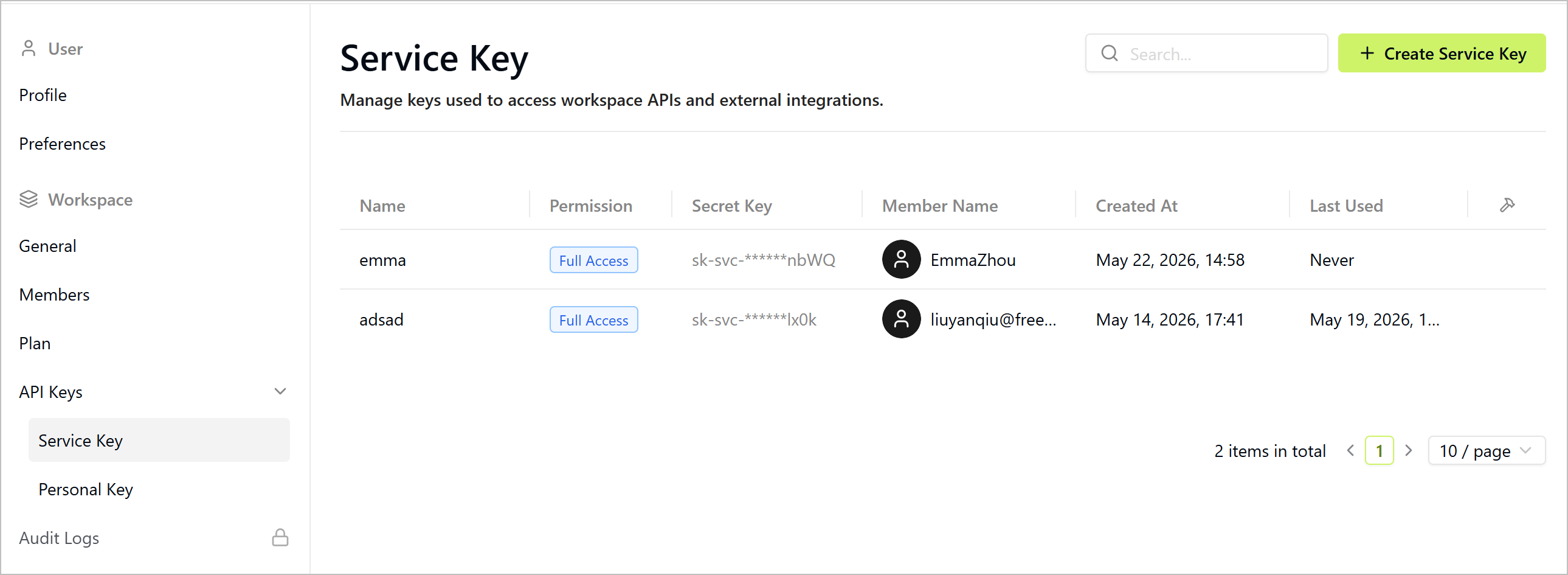
- Service Key: Workspace owner and admin can create this key with self-defined permissions.
- Personal Key: Members can only create this key with Read-only permission.
- Click Create Service Key, and enter the key name, set the permissions, and then click Save.
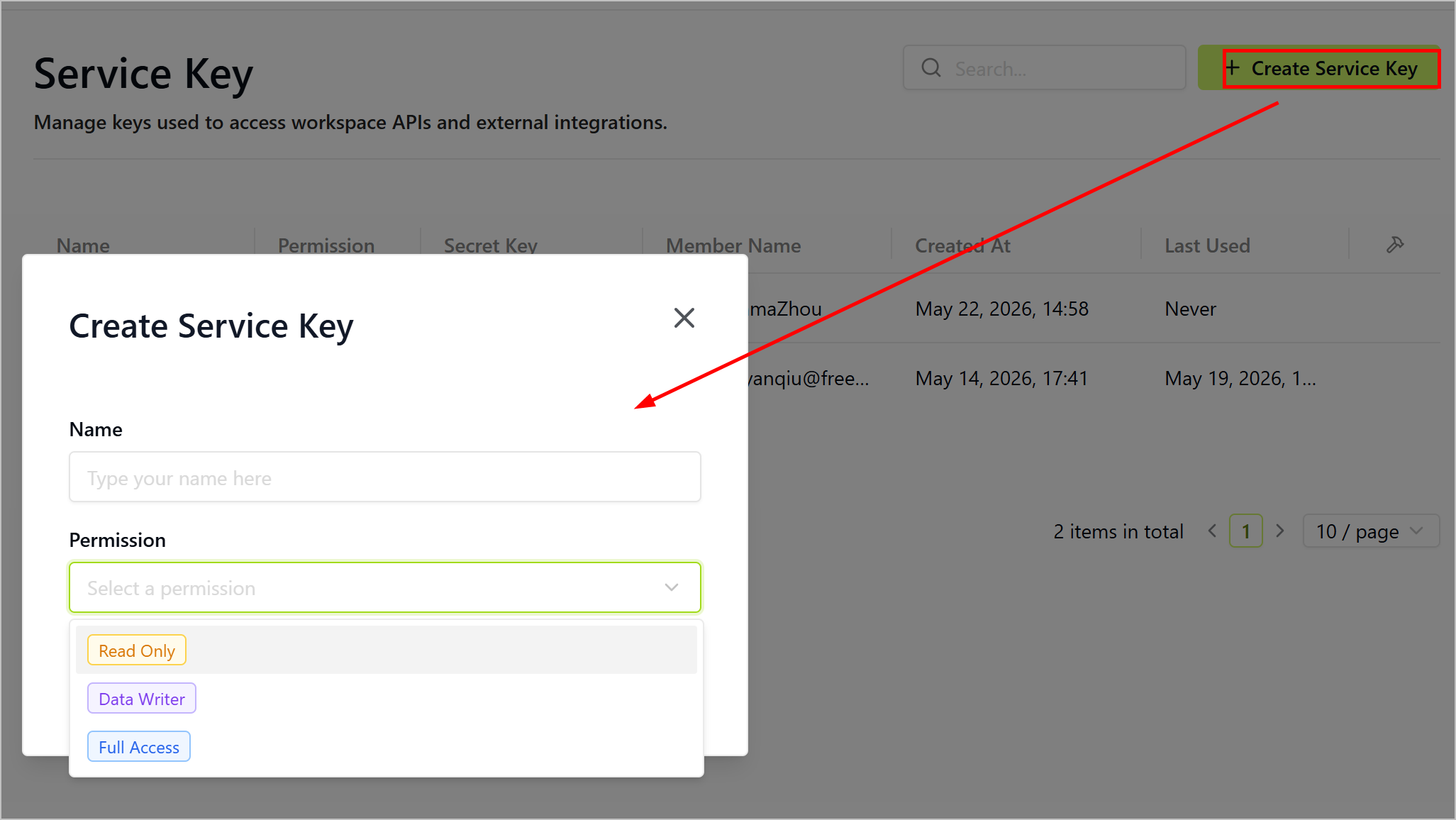
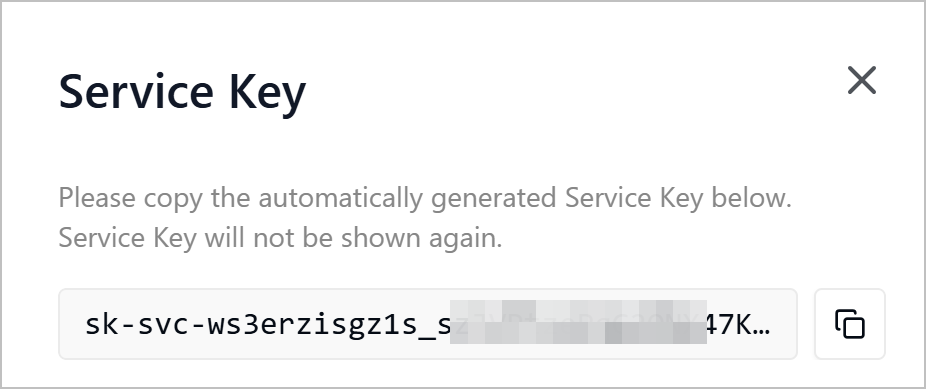
- Copy the generated key and use it in your API calls.
info
- Do the same to create a personal key if needed, but remember to keep the key secure and do not share it with others.
- You can edit/delete the keys by clicking
 next to each key.