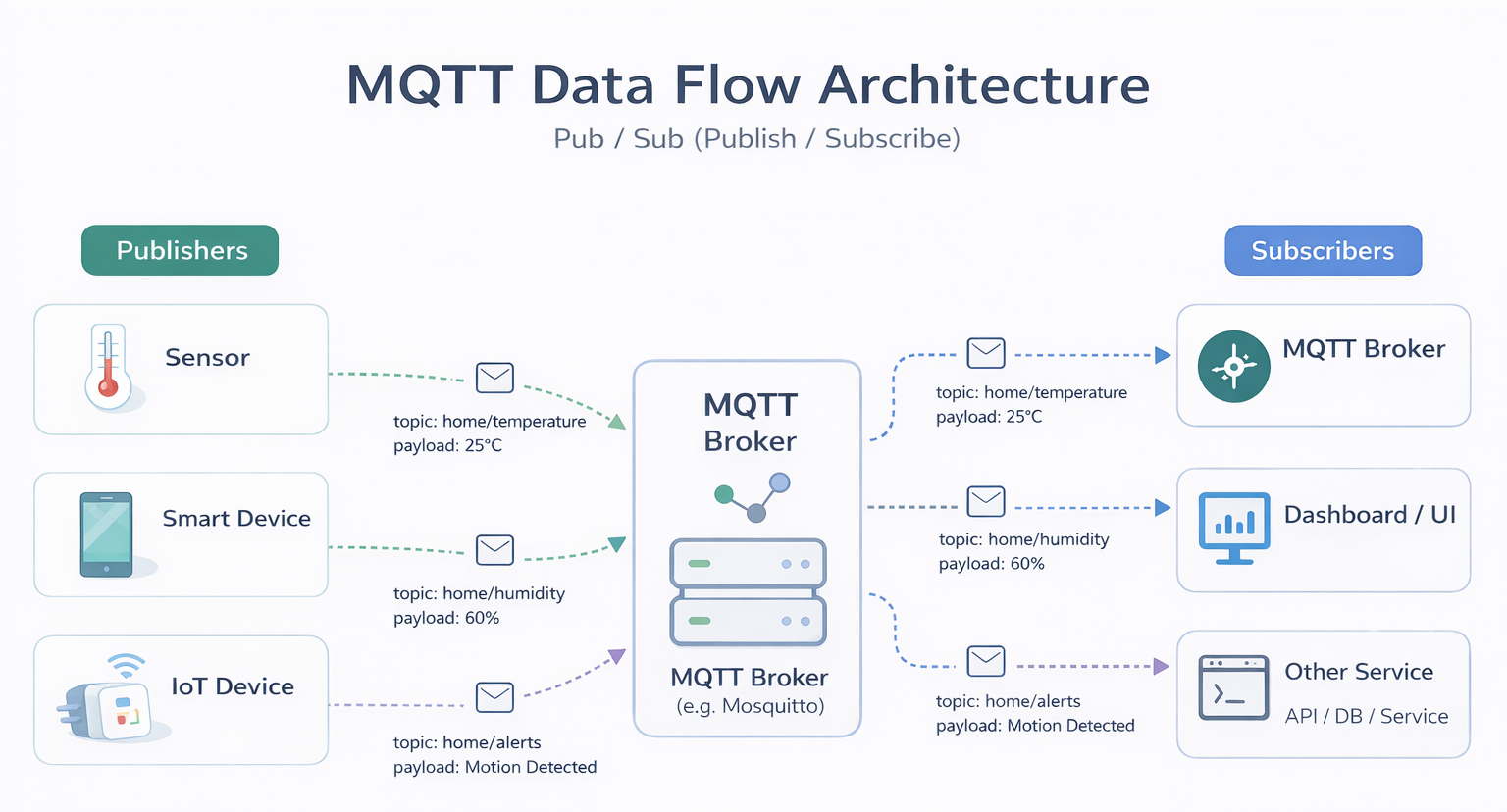
What is MQTT?
- MQTT is a lightweight real-time messaging protocol that lets connected devices (clients) send data to a central server (broker) and receive updates immediately.
- Access control can be added on the central server (broker) for security reasons, so devices (clients) must be authenticated before they can connect.
- For more details about MQTT, please refer to MQTT Protocol.
How to Connect MQTT Clients via Authentication
Tier0 offers an embedded MQTT broker that allows third-party clients to connect and publish data to/subscribe to data from UNS.
- Log in to Tier0, select Edge.
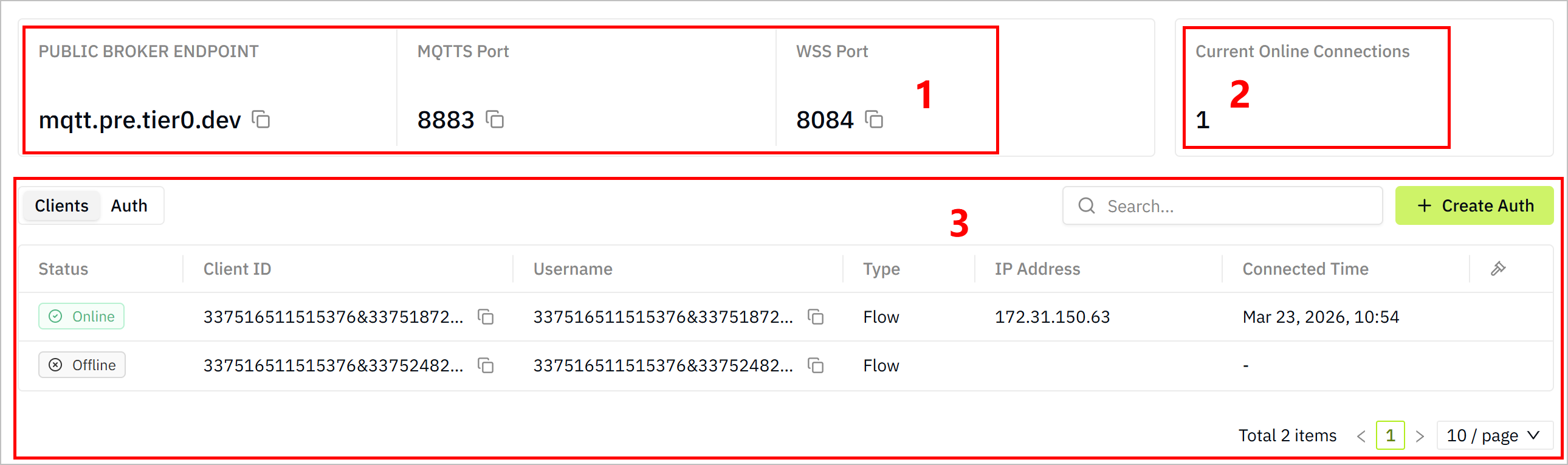
| Index | Item | Description |
|---|---|---|
| 1 | Broker Info | Displays the connection information of the internal MQTT broker. |
| 2 | Current Online Connections | Displays the number of current online connections to the internal MQTT broker. |
| 3 | Client List | Displays the list of connected clients and generated credentials. |
-
Click MQTT Credentials.
-
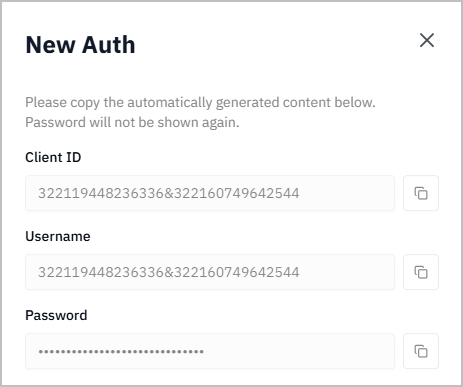
Click New Credentials, enter the description, and then click Create.
info
- Make a note of the generated Client ID, Username, and Password. You will need them to configure the MQTT client.
- The following clients are used as examples to show how to use the credentials to connect to the internal MQTT broker.
- Install an MQTT client, such as MQTTX, MQTT Explorer and others.
- Use the credentials from Tier0 to connect the client.
- Add a new connection in MQTTX with the generated credentials.
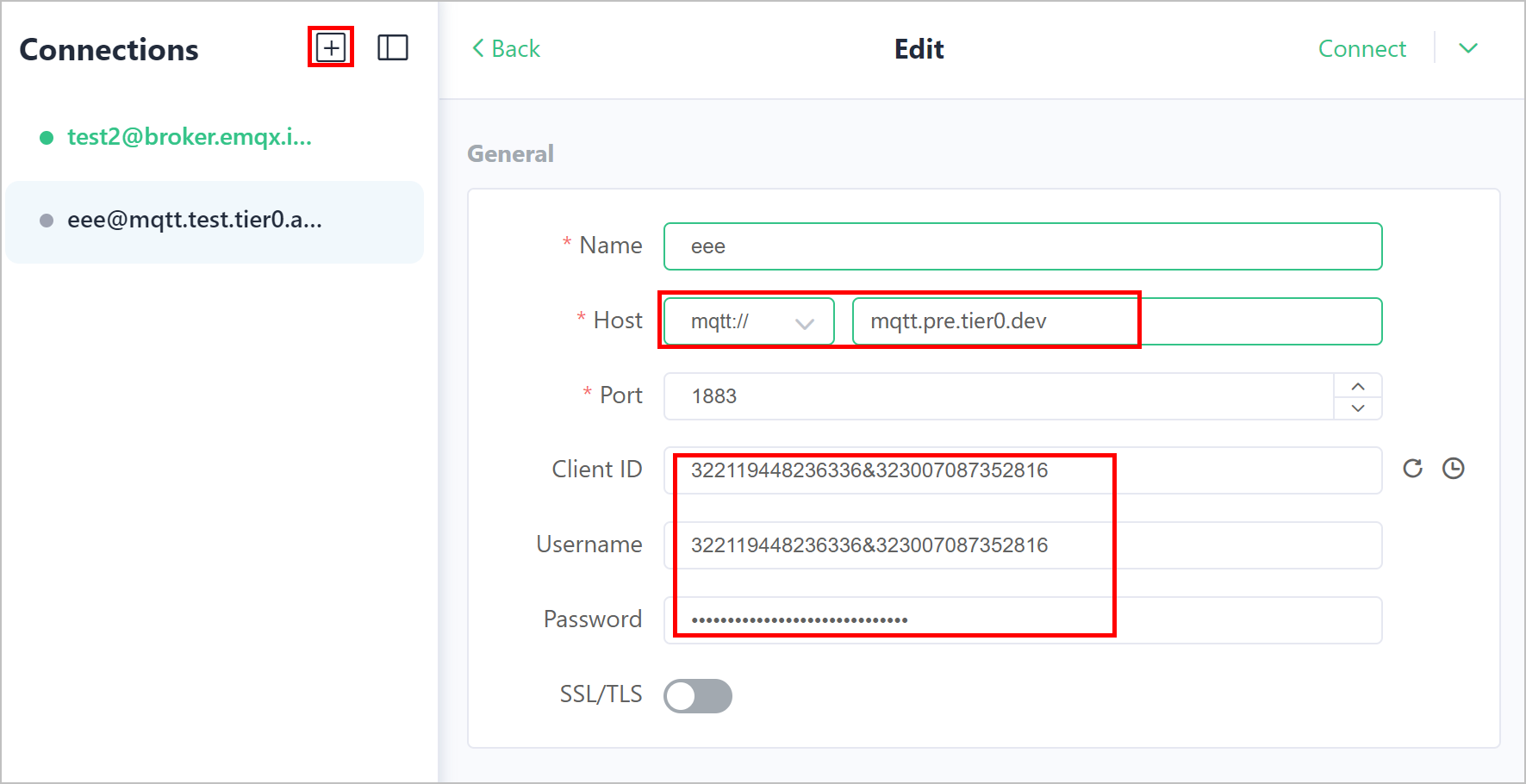
- Click Connect.
- Add a new connection in MQTT Explorer with the generated credentials.
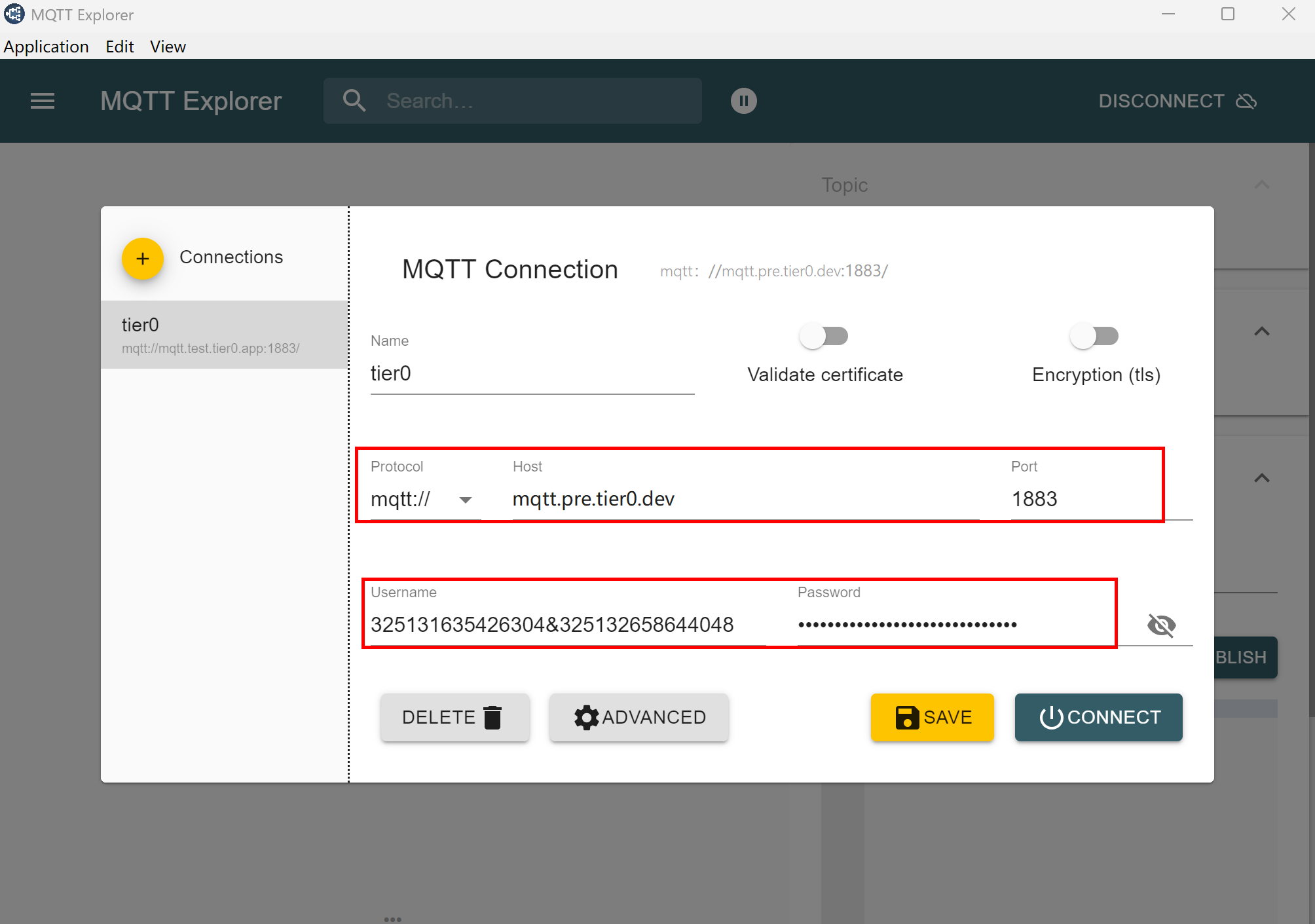
- Click ADVANCED, change the client ID.
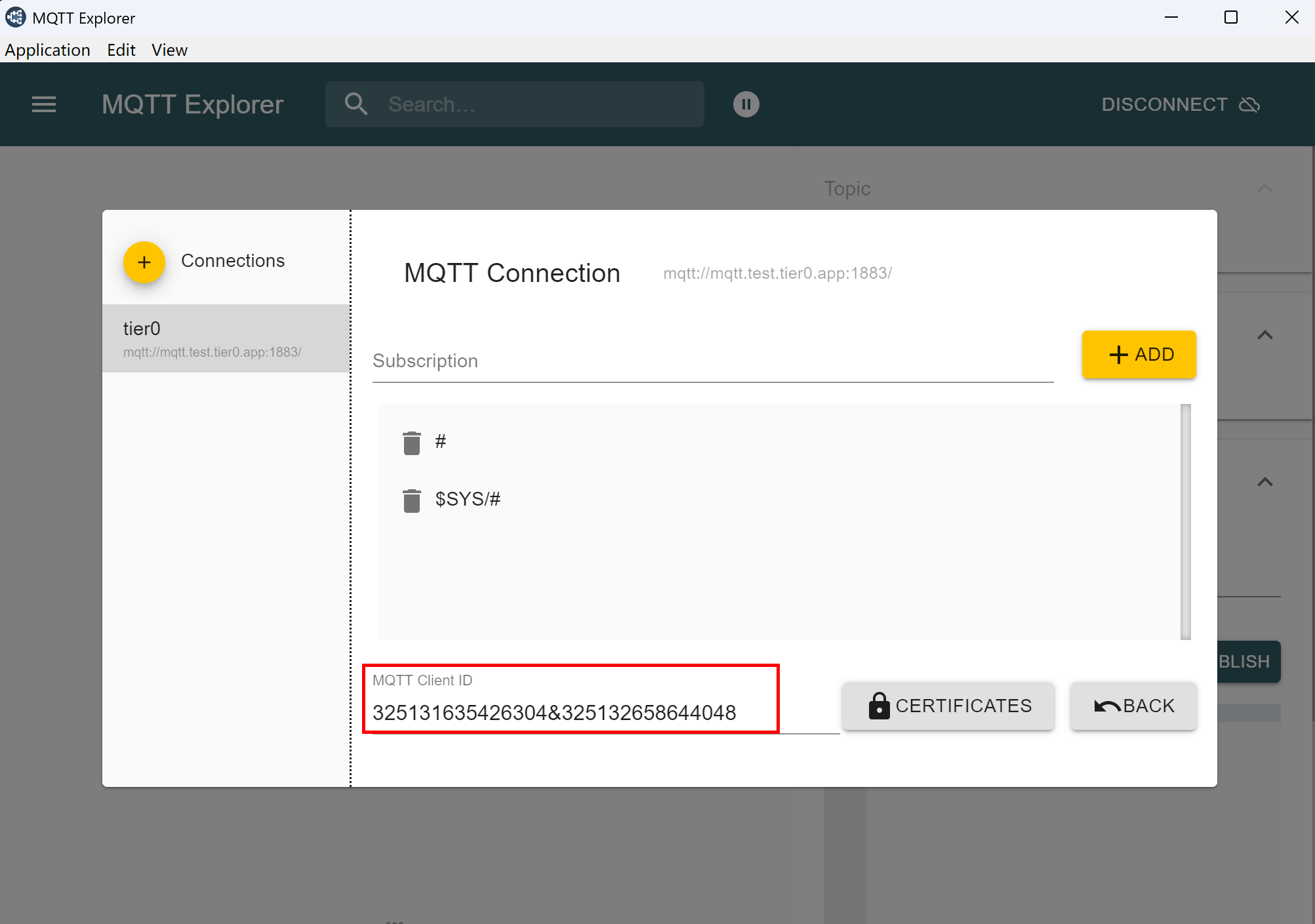
- Click BACK and then CONNECT.
- Node-RED
- Open your Node-RED instance, double-click the
mqtt innode. - Add a new MQTT broker with the generated credentials from Tier0.
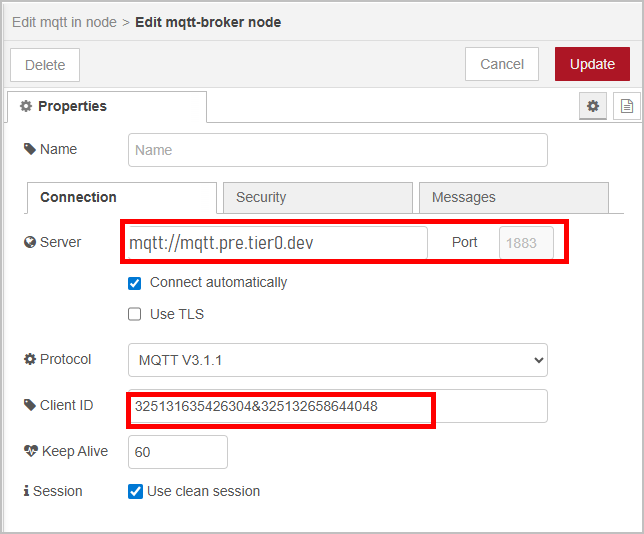
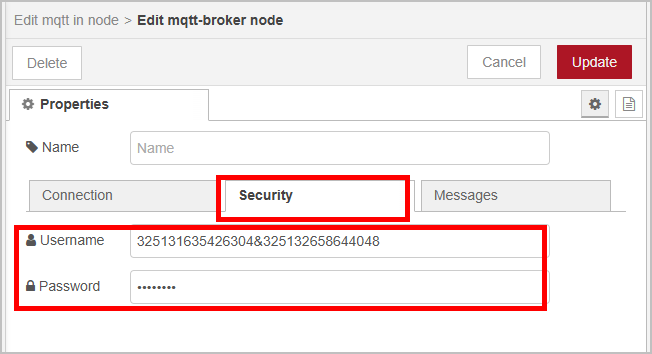
- Go back to the Edge page on Tier0, click the Clients tab and check whether the client is connected.
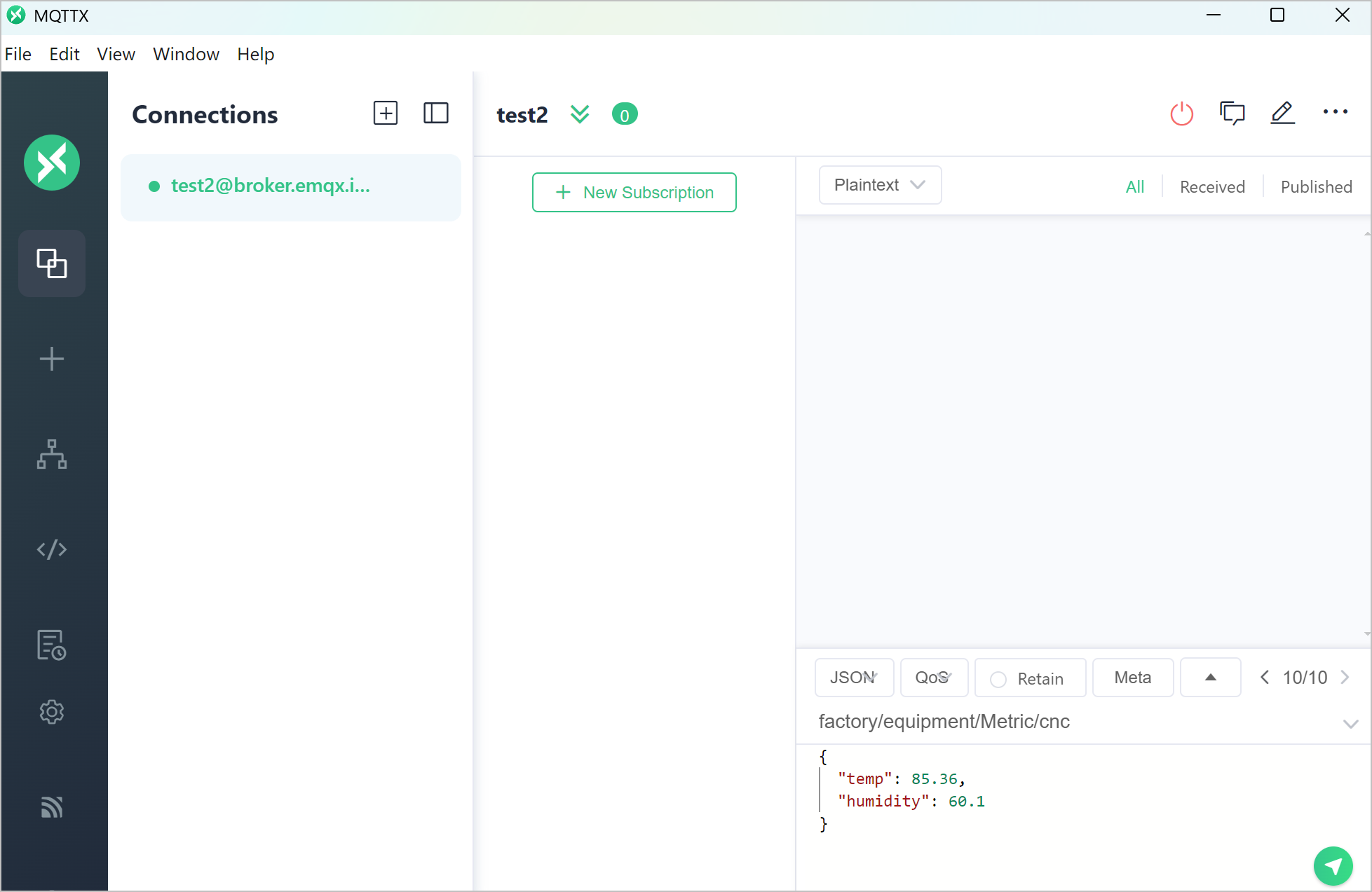
- Copy the topic of the data model under UNS, and publish a message to it through the client.
- Go back to UNS, check whether the data has been received under the target topic.