Build Industrial Applications
Tier0 enables you to build industrial applications simply by talking to an LLM in natural language, and manage them in one place.
Building Applications
- Log in to Tier0, and select App > Projects.
A starter project is available for you to experience the application building process.
-
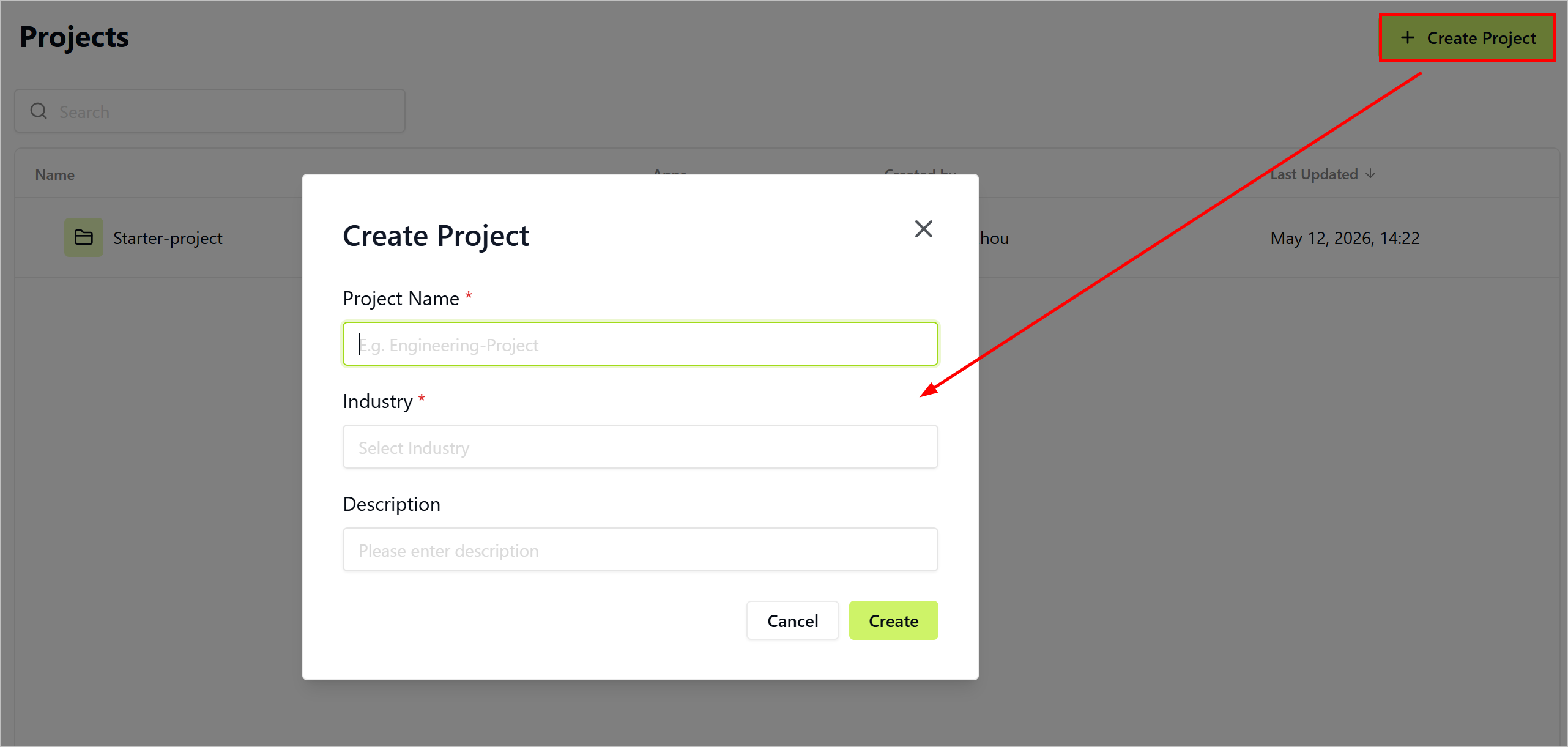
Click Create Project, enter the project name and description, select an industry and click Create.
-
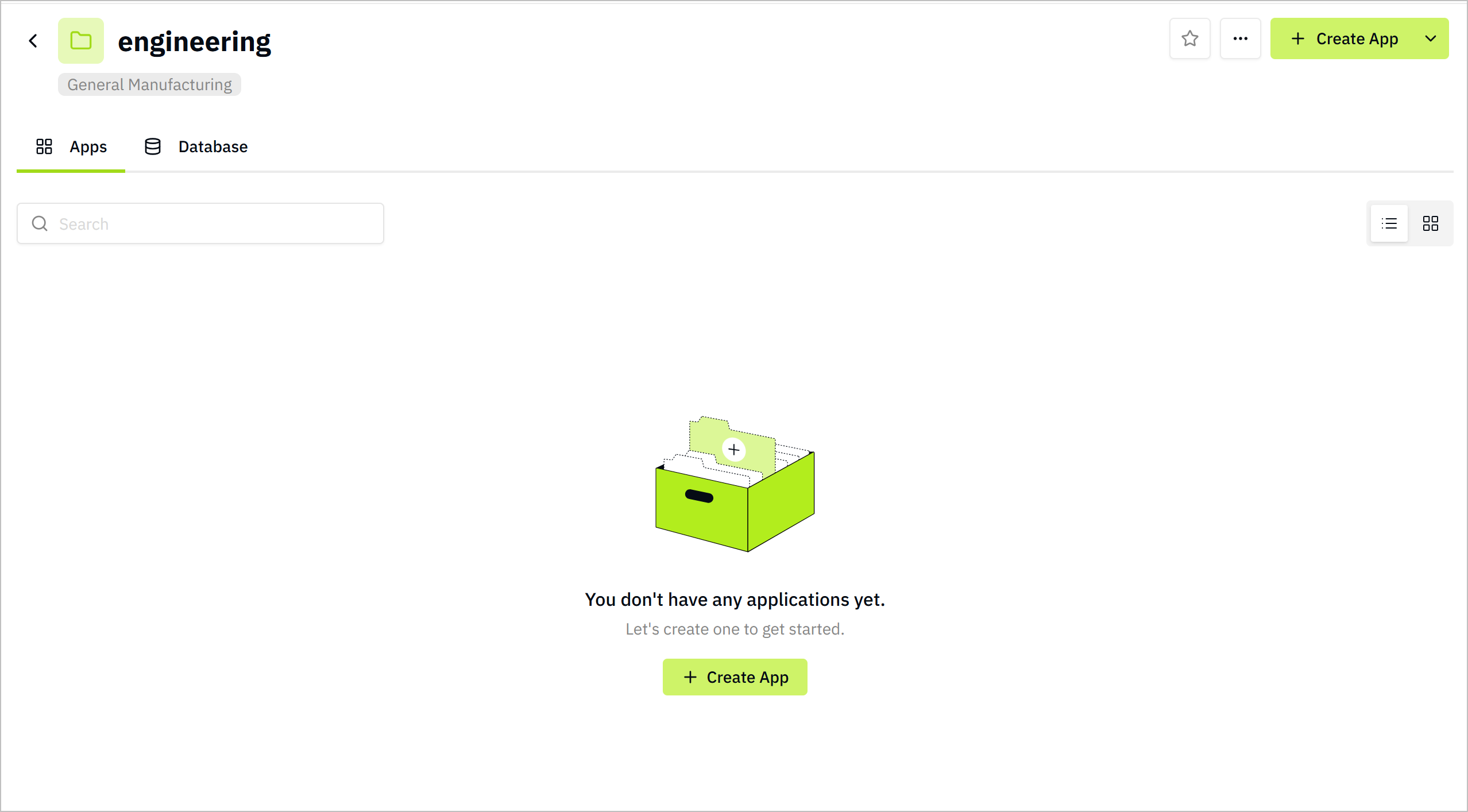
Open the project, click Create App, and you will be redirected to the application building page.
-
Define the application through prompts, and start building it.
You can delete the sample prompts and enter your own.
-
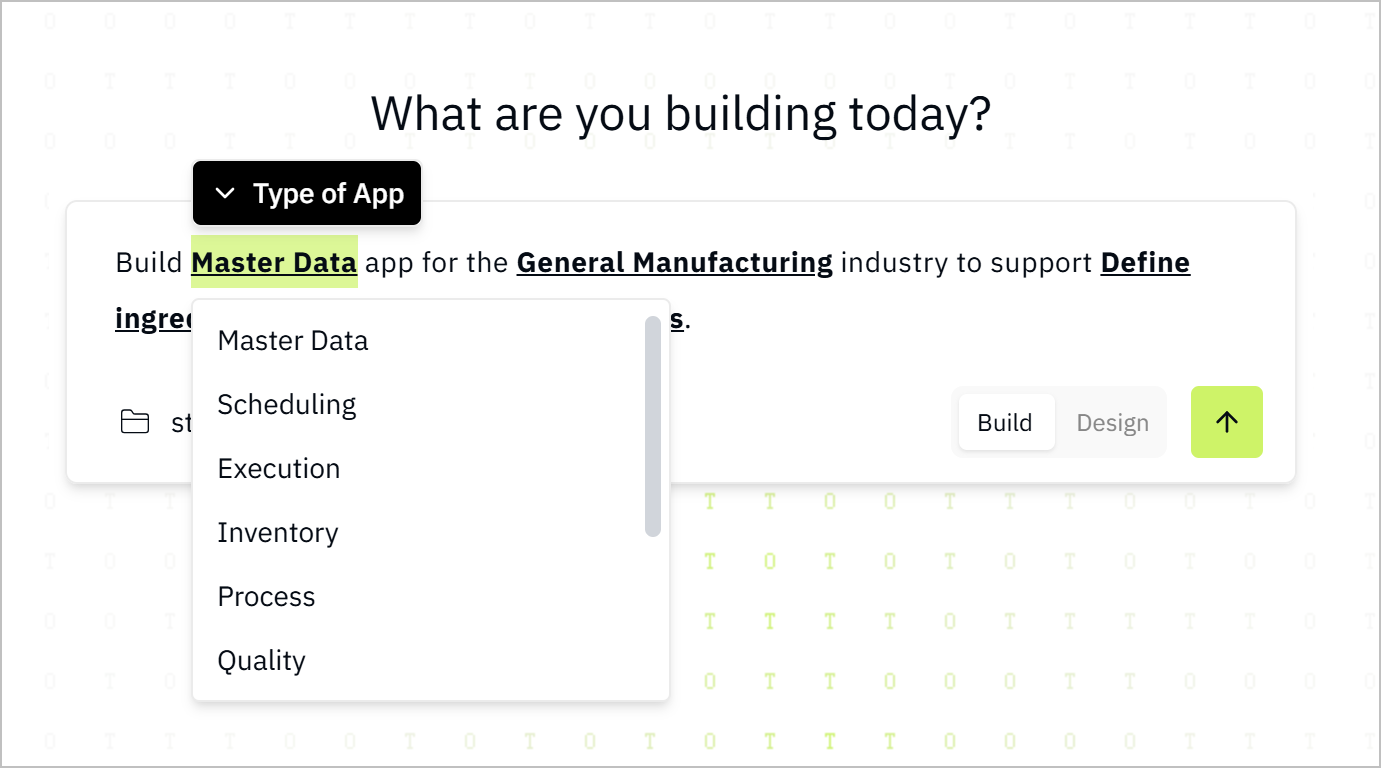
Click App Type, select the type you want from the drop-down list.
-
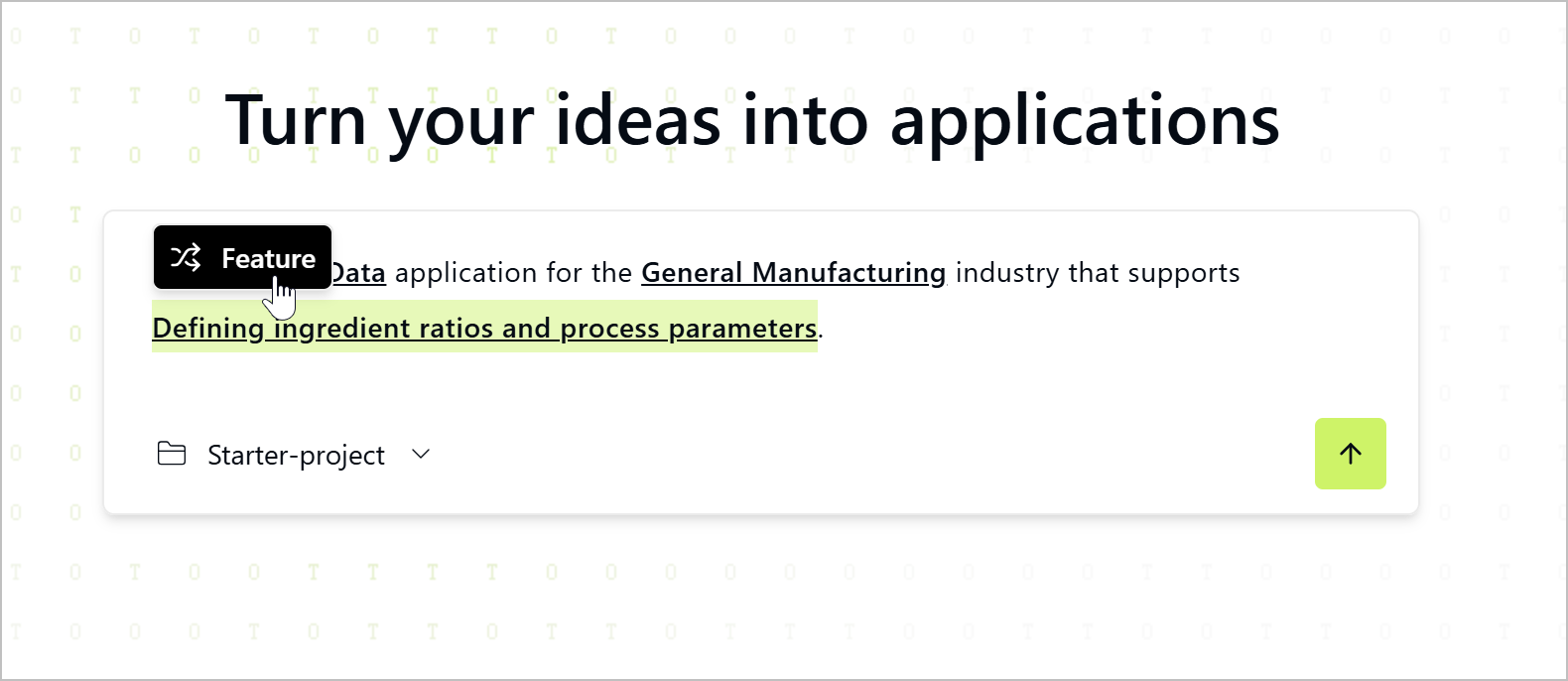
Click Feature to switch between all features, select the one you want.
-
Click
 .
.
Click the project name at the lower-left corner of the dialog window to switch between projects, or create new projects.
- Wait for the building to complete, and check the application details.
You can always change the application configurations by talking to the LLM while building.
- Fine-tune your application by talking to the LLM after the initial build.
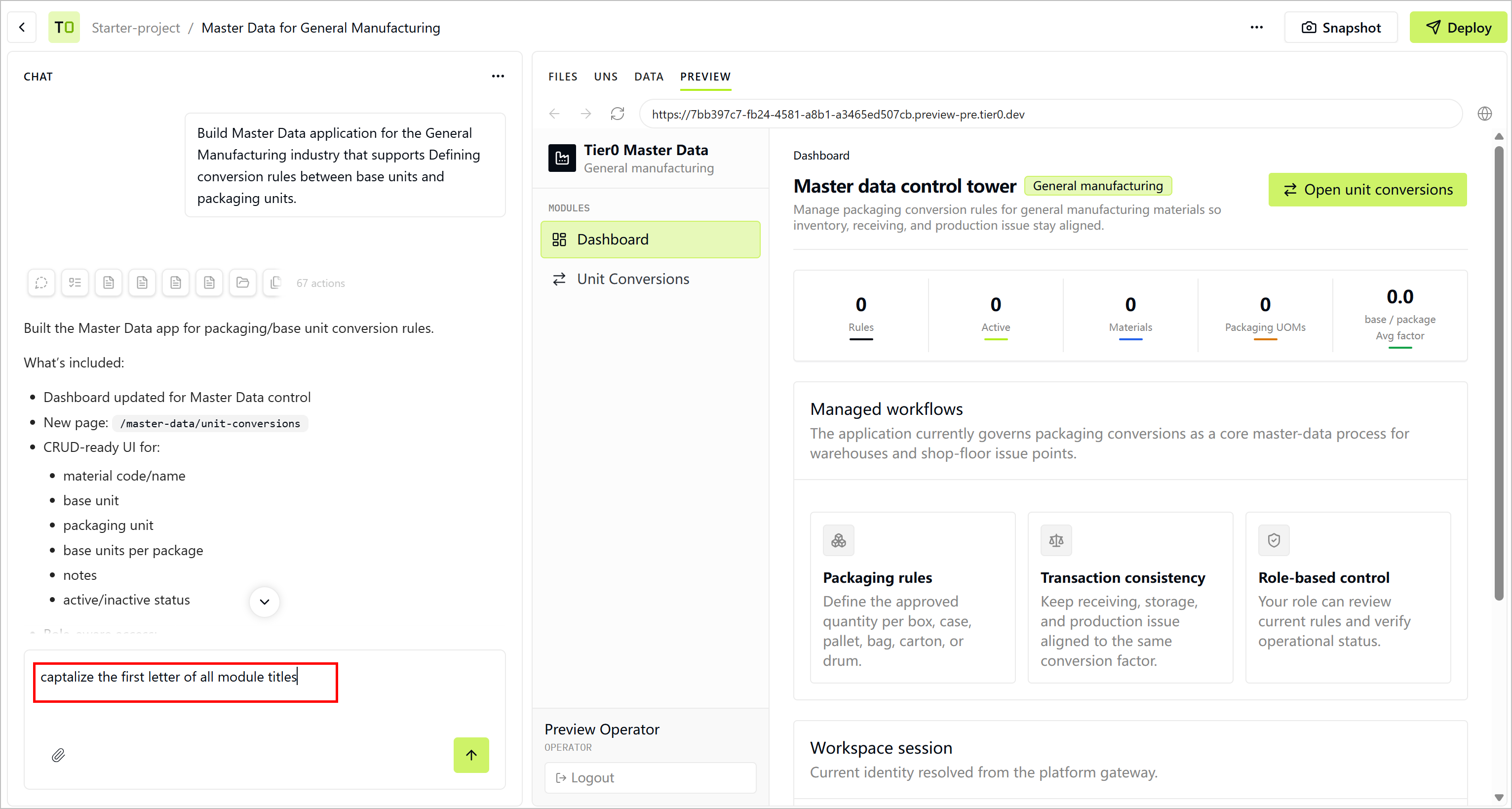
- Click
 at the upper-right corner to download the installation package of the application.
 - Click Snapshot at the upper-right corner to create a snapshot of the application, which can be used to restore the application to a previous state when needed.
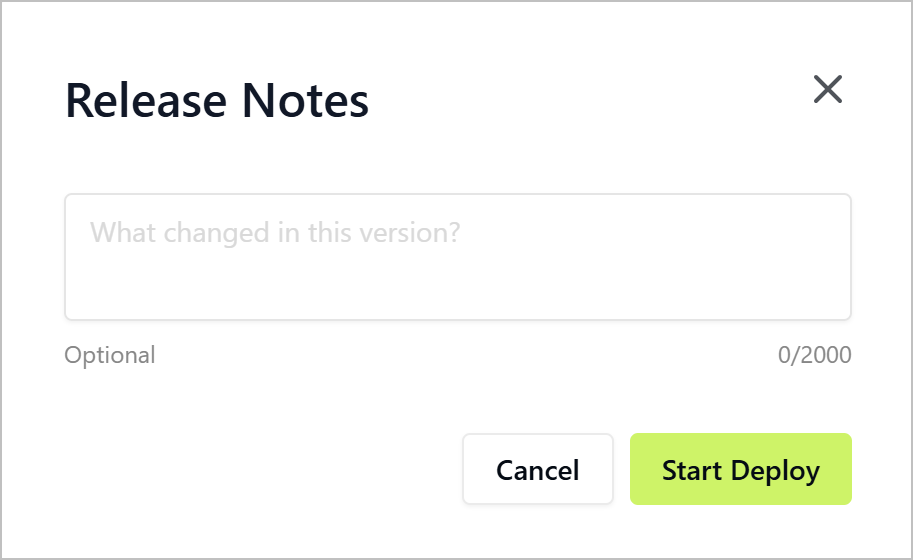
- Click Deploy at the upper-right corner after preview the application, enter release notes and then click Start Deploy.
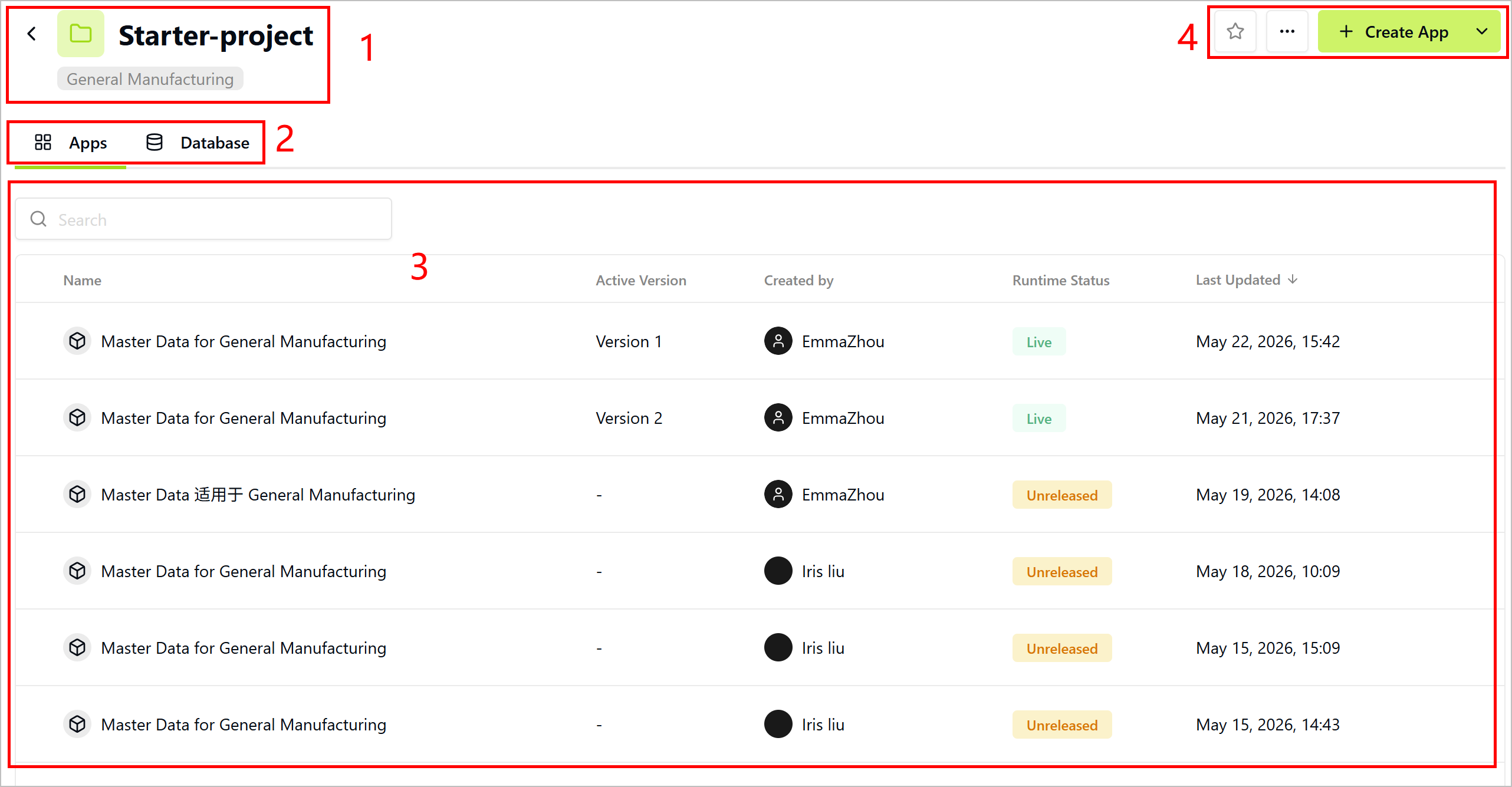
- Go to Projects, the deployed application will be listed there, click the application to view the details.
| No. | Item | Module | Description |
|---|---|---|---|
| 1 | Project Information | Project name and type. | |
| 2 | Apps/Database | Categories of applications and databases generated during building. | |
| 3 | List | Lists applications and databases inside the project. | |
| 4 | Operations |  | Add the project to Favorites. |
| Edit the project basic information/delete the project. | ||
| Create App/Import App | Create application in Builder or import an existing application. | ||
Hover over the application item and click to view more operations, such as editing application information, bettering application in Builder, deleting the application or copying the sharing link of the application.
Running Applications
- Go to Projects, click the application you just built.
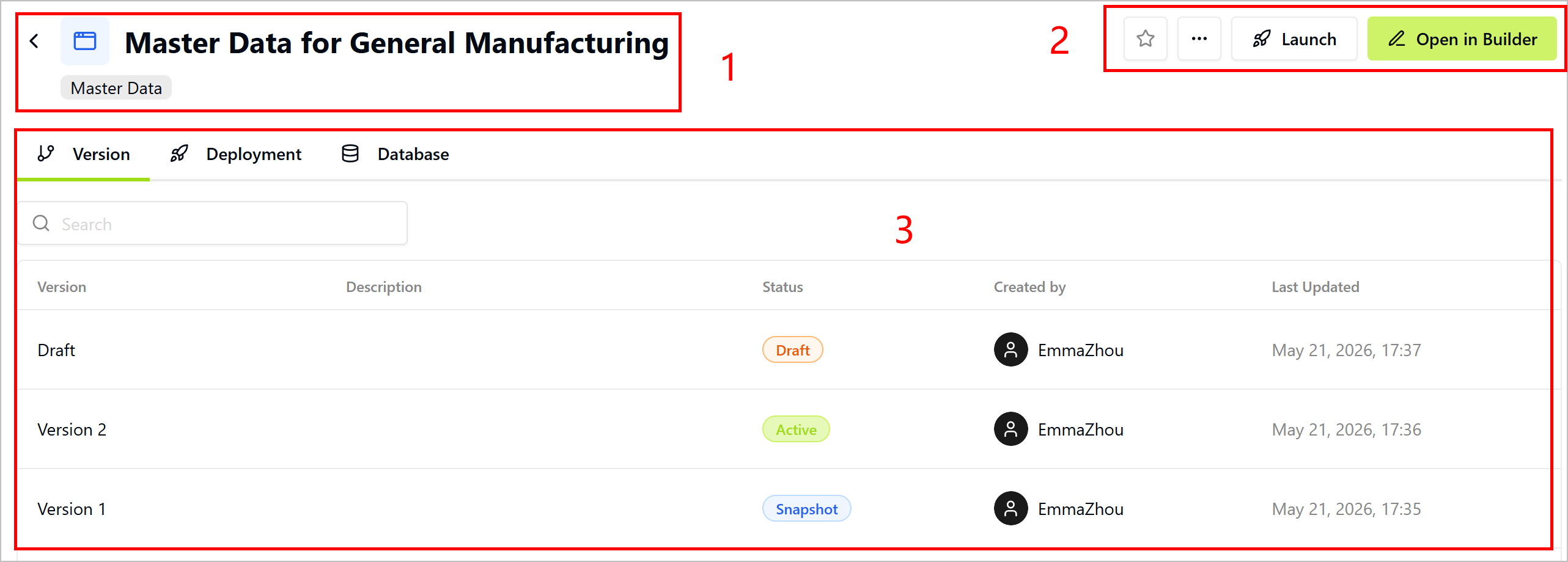
| No. | Item | Module | Description |
|---|---|---|---|
| 1 | Application Information | Application name, type and feature. | |
| 2 | Operations | | Add the application to Favorites. |
| Edit the application basic information, delete the application or copy the sharing link of the application. | ||
| Launch | Access the application. | ||
| Open in Builder | Go back to the application building interface, and talk to the LLM to edit it. | ||
| 3 | Application Details | Version | Application version list. Versions in Draft status are not yet deployed, Snapshot means deployed but not in use and Active means currently in use. |
| Deployment | Deployment details of every deployment of the application. | ||
| Database | Database tables generated during application building. | ||
| 4 | Version Operations | Open in Builder | Open this version draft in Builder and fine-tune it. |
| Download ZIP | Download the application as a ZIP file for offline use, for example, installation on a local Tier0 Enterprise. | ||
| Deploy | Deploy this version of the application. | ||
| Snapshot | Create a snapshot of this version of the application. | ||
For Snapshot versions, click Deploy will restore the application to the state when the snapshot is created, so please be cautious when deploying.
- Click Launch, and you can see the application you just deployed.
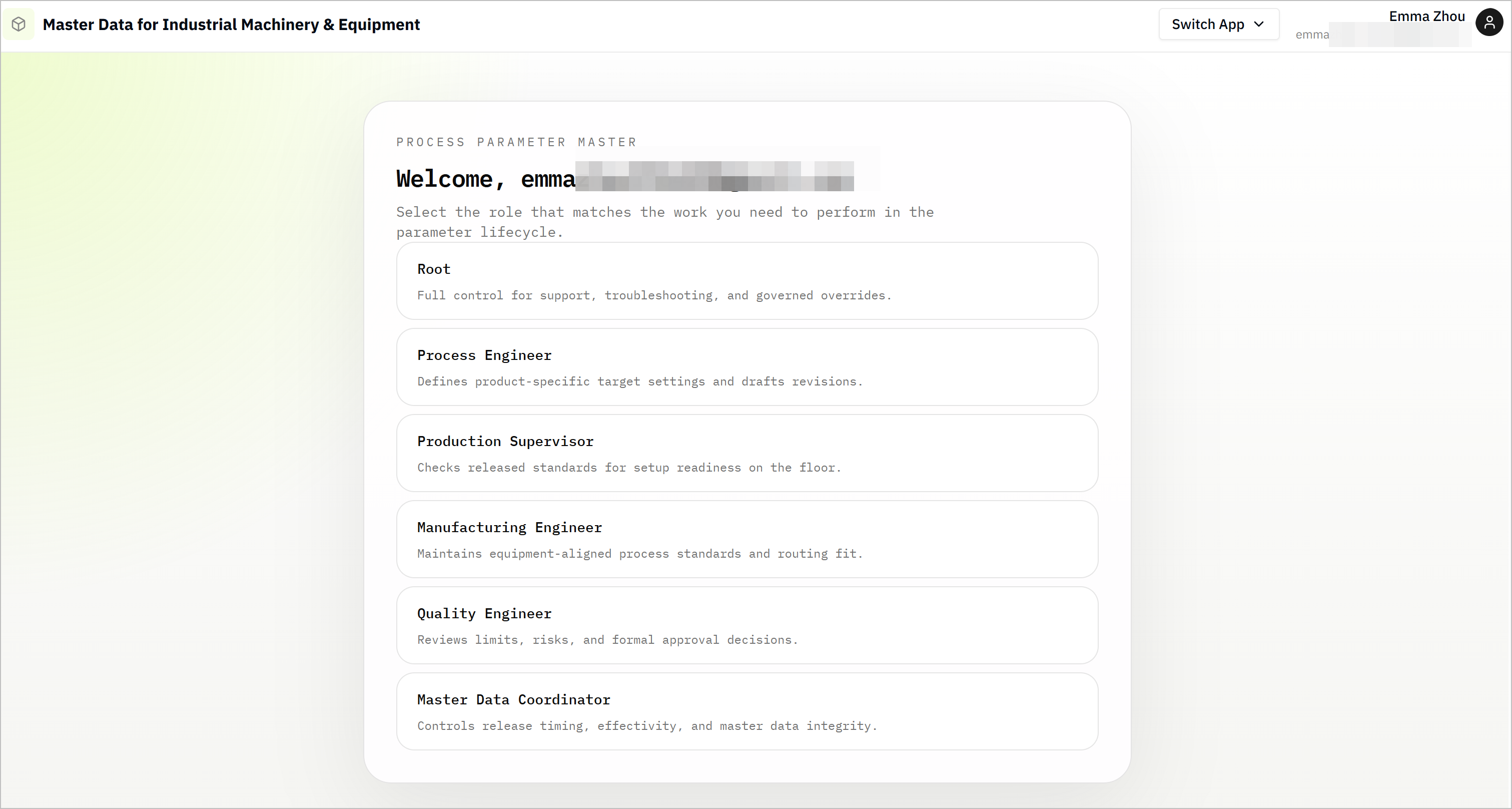
Click Switch App, you can select all launched applications to view.
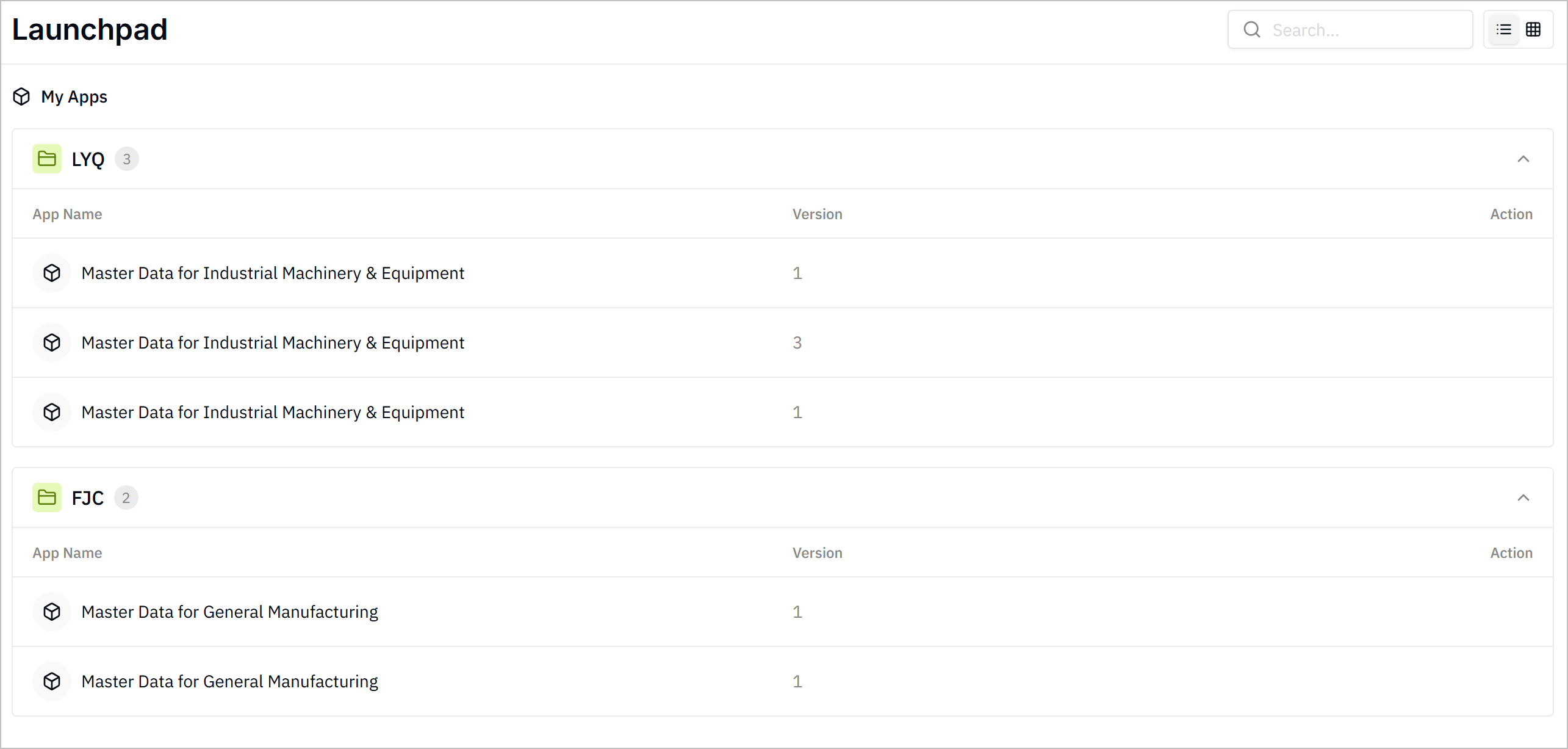
- Go to Launchpad, select an application and use it.